
One of the most prevalent security incidents I have seen arise in small and medium-sized businesses is the installation of Potentially Unwanted Programs (PUPs). Allowing every employee to install software at their discretion is likely to lead to unwanted or malicious programs infiltrating the company's network environment. A core principle of modern zero-trust security is not trusting any user or program by default. All software deployed in the environment needs to be vetted carefully before installation.
This framework has already reviewed Group Policies as a way of locking down systems so users cannot install any software without administrator elevation. Another feature that can take this a step further is Application Whitelisting. This strategy prevents all software from running by default. Network administrators then have to go in and manually allow the programs that are approved for the work environment. Using application whitelisting adds a "principle of least privilege" to software. Employees are only allowed to run the bare minimum software to do their work.
Different device management platforms have their own strategies for implementing app whitelisting. MS InTune and Apple Configurator are two Mobile Device Management platforms that allow an admin to centrally set app whitelisting policies for devices in their network. Depending on the devices running in your network, InTune may be a good option as it supports management for Windows, macOS, IoS, and Android devices.
The classic implementation of app whitelisting is through the Windows AppLocker program. If your network runs a handful of Windows PCs, then AppLocker should suffice for setting app whitelisting policies.
AppLocker is configured through the Windows Local Security Policy:
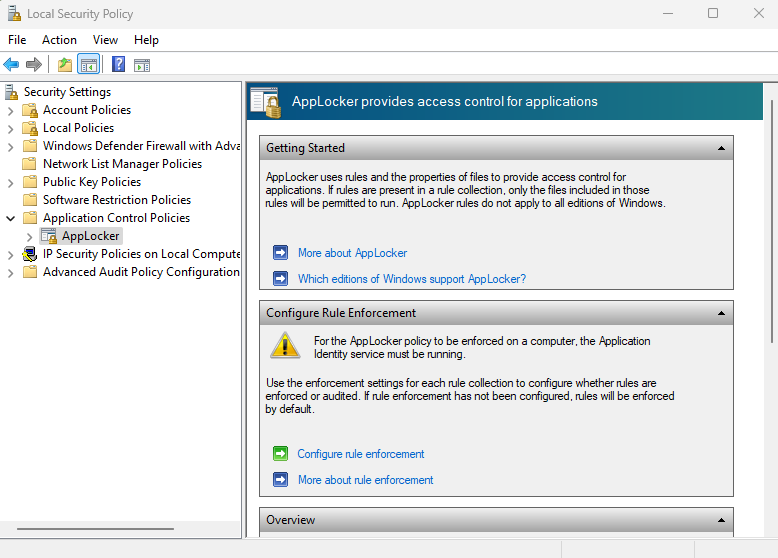
AppLocker allows you to whitelist applications through three rule conditions:
- File Publisher
- File Path
- File Hash
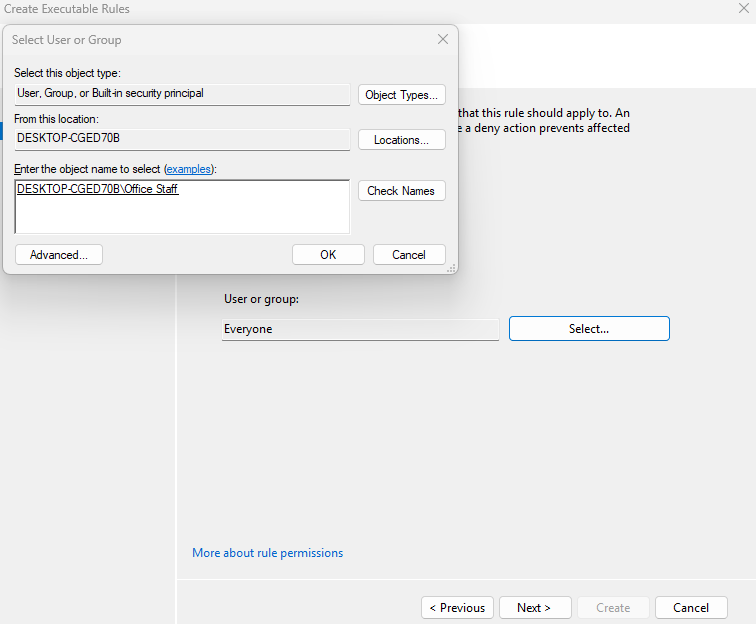
For demonstration, I am going to restrict my Office Staff group to using only the necessary programs for their daily workflows. I start by generating Default Rules in AppLocker. These are the templates that will be used to create more granular rules.
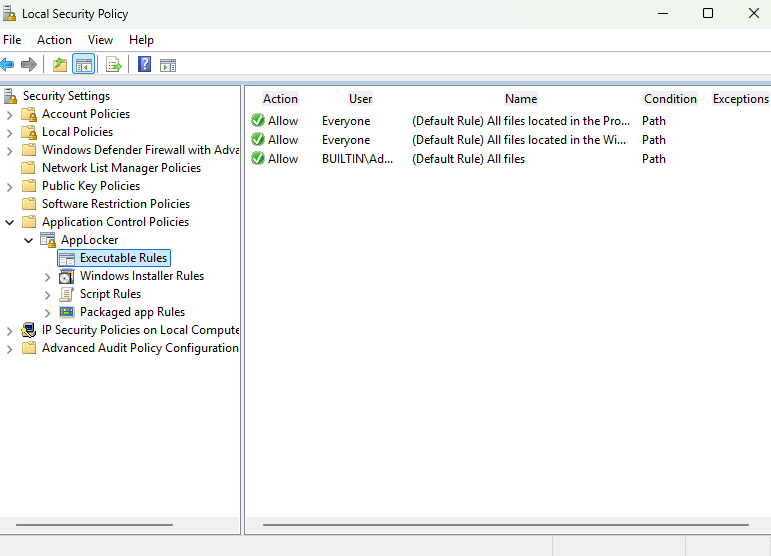
I can then begin creating a new AppLocker rule for my Office Staff local user group.
For this demo, I want to allow Chrome, OneDrive, Firefox, VLC, and Zoom.
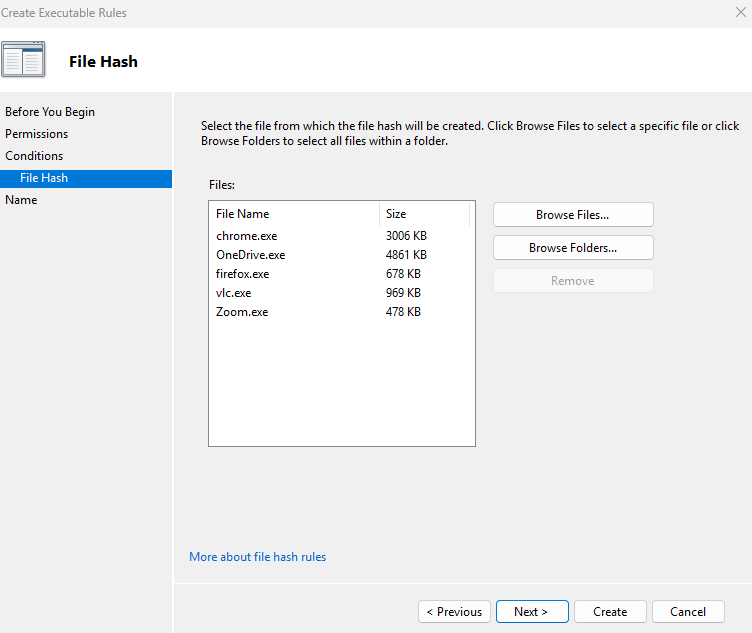
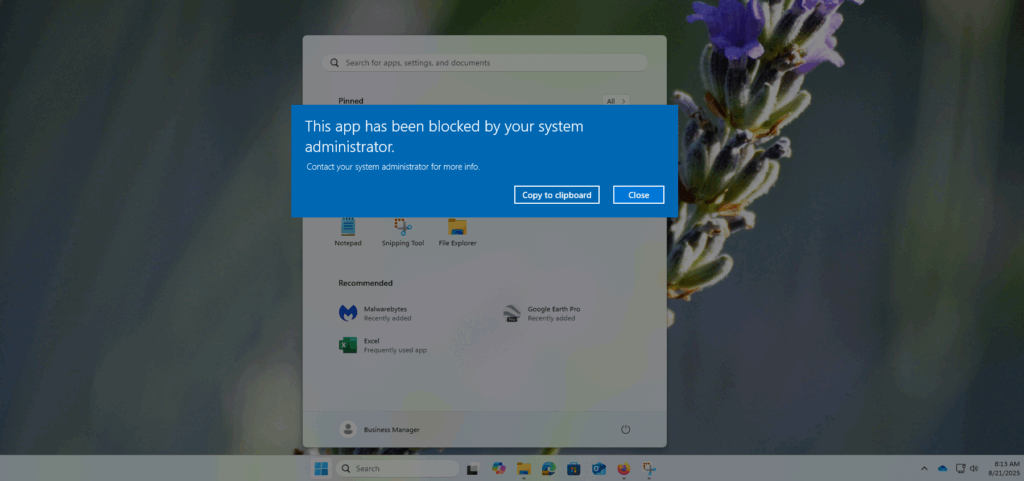
Once the rule is created, all office users will be permitted to access only the above-specified programs. Attempting to access a different program will result in an error from Windows.
Application Whitelisting is an extremely powerful way to limit the attack surface of your systems. Combining it with strict access controls will limit the possibility of your employees bringing in unwanted or malicious applications to your environment.