Backing up company data is a requirement for a good cybersecurity program in any organization. You will be affected by a cyberattack at some point, and having backups on hand may be the difference between going out of business and staying in business. The backup solution you choose for your organization is greatly dependent on the size of your company, both in user accounts and machines.
At present, some standard procedures for backups should be followed:
- Make at least two copies of every backup.
- Store at least one copy on-premises and one copy off-premises, whether that be in the cloud or another building.
- Test backups regularly.
- Store physical copies of backups in a secure location such as a safe or locked drawer.
These recommendations should be followed regardless of business size. Once you have an understanding of them, you can choose from any combination of backup solutions to put in place. After you have decided on an appropriate combination of backup technologies, you must set a schedule for conducting the backups. You should always take advantage of automatic backups, since you are realistically going to forget to make manual backups on schedule. Make sure to configure automatic backups to take place after work hours. This prevents interference with workflows and extensive use of network bandwidth.
There are three major strategies for backups:
- Full Backup: A complete copy of your data is made and stored every time.
- Incremental Backup: All data that has changed since the last full backup is copied and saved in day-by-day increments.
- Differential Backup: Every change made since the last full backup is copied, with all new data since the last full backup being included, regardless of whether it has already been copied.
If your organization performs heavy workloads on data such as documents, you may find that it is easier to make full backups every week. This is highly dependent on the amount of storage provisioned for your backup solution. If you want to retain multiple iterations of your business data, it may be wiser to opt for an incremental or differential backup.
Backup solutions can also be configured to overwrite previous backups after a certain period of time, such as after 30 days up to 180 or more days. This prevents redundant data from hogging storage and potentially costing you more money.
Backup to Removable Media
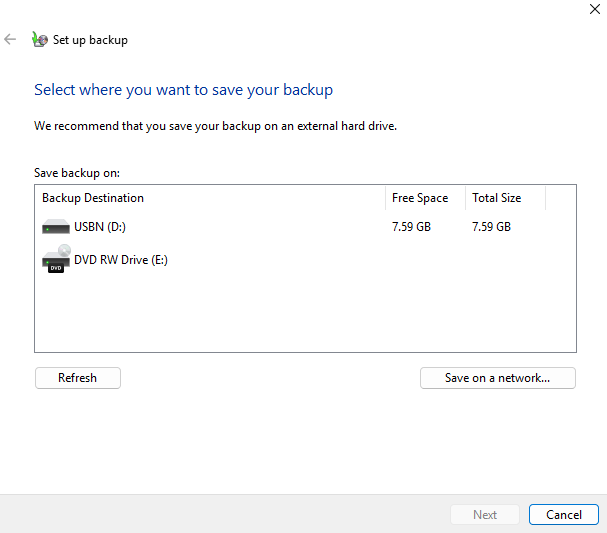
If your organization has only a few computers in place, then making backups to removable media is a good, straightforward approach. You can pick up external hard drives from your local Walmart or purchase them online. USB flash drives can also be used, depending on the type of data being processed and the size of the file. Shoot for a 1TB external hard drive if you want ample storage for a decent period of time.
Once you have media to back up to, you must configure your operating system to backup your data. Windows has the Windows Backup program built into Windows 11. Linux has a variety of tools, such as rsync and dd. Make sure to consult your OS documentation to find the correct steps for backing up to removable media.
Backup to Cloud Storage Software
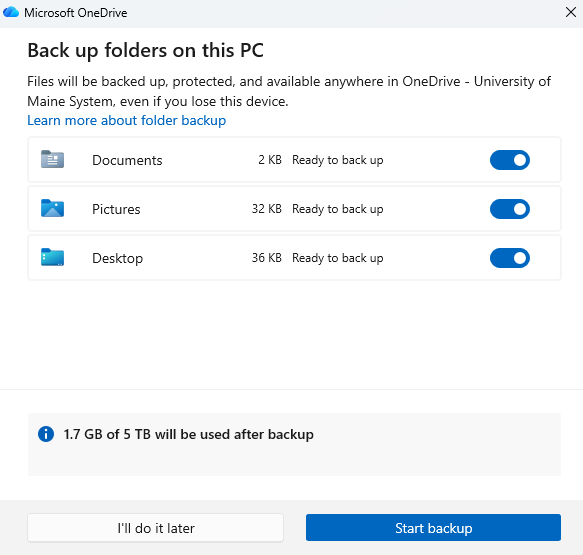
OneDrive, Google Drive, and Dropbox are Software as a Service cloud storage solutions found in many organizations. All three programs offer a backup solution that allows you to use their software to automatically backup your local data.
OneDrive has a backup and sync feature that allows you to easily configure automatic backups of the local folders and files stored on your Windows PC. If your organization consists of a handful of Windows PCs and Microsoft 365 subscriptions, then this solution may be the quickest and easiest way to go.
Google Drive offers a desktop deployment that can be used for the same purpose. If your organization does not utilize any professional Microsoft 365 solution, then Google Drive for Desktop may be the better approach for automatically storing backups. Drive for Desktop has a macOS version, making it a viable solution if your organization uses Mac computers.
Dropbox Backup is yet another cloud storage option for storing backups. Like the previous two, it simply involves downloading the desktop app and configuring the software to backup and sync select files.
For a small network, storing one backup on external media and one backup on one of these cloud storage platforms might be the easiest way to meet the proper standards for backups.
Backup to Network Attached Storage (NAS)
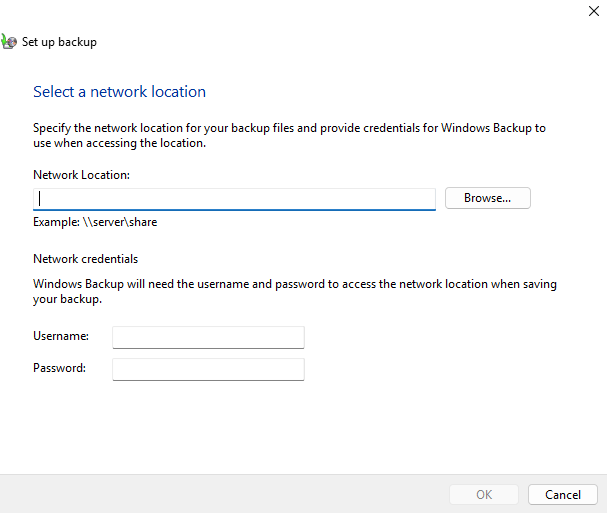
In a larger network, it may not be convenient to go around managing backups to multiple different removable storage drives. Configuring machines to automatically backup to a central Network Attached Storage device is a good alternative for networks with ten or more machines.
There are several options for NAS solutions. They can be purchased from online vendors for a reasonable price. Before purchasing a NAS, make sure to survey your network and determine how much storage space you will need to support backups for several years.
A NAS device can also be built from scratch. If your organization has an extra desktop computer with ample storage, you can use the open source operating system TrueNAS to build a network backup server from scratch.
Backup to Custom Cloud Storage
While using Software as a Service platforms like OneDrive can do the job for cloud backups, purchasing and configuring your own cloud storage space through a provider like AWS or Azure offers you more granular control over your backups. Cloud vendors provide various specifications for storage space on an Infrastructure as a Service basis. Vendors offer different storage tiers for different prices and different storage purposes. An added benefit of cloud storage is the Pay as you Go feature, which allows you to pay only for the space you use.
Azure Blob Storage and AWS Backup are two solid solutions for building custom storage for backing up your business data.
File History
A useful tool that can be implemented alongside your backup solutions is Windows File History. This program will save separate versions of data during its lifetime, allowing users to revert to an earlier version of the data if the need arises. Configuring File History requires you to have a separate drive or partition on your current drive to store the copies of data. By provisioning this feature on your Windows workstations, you can ensure employees have recovery options if work on a project goes haywire.
