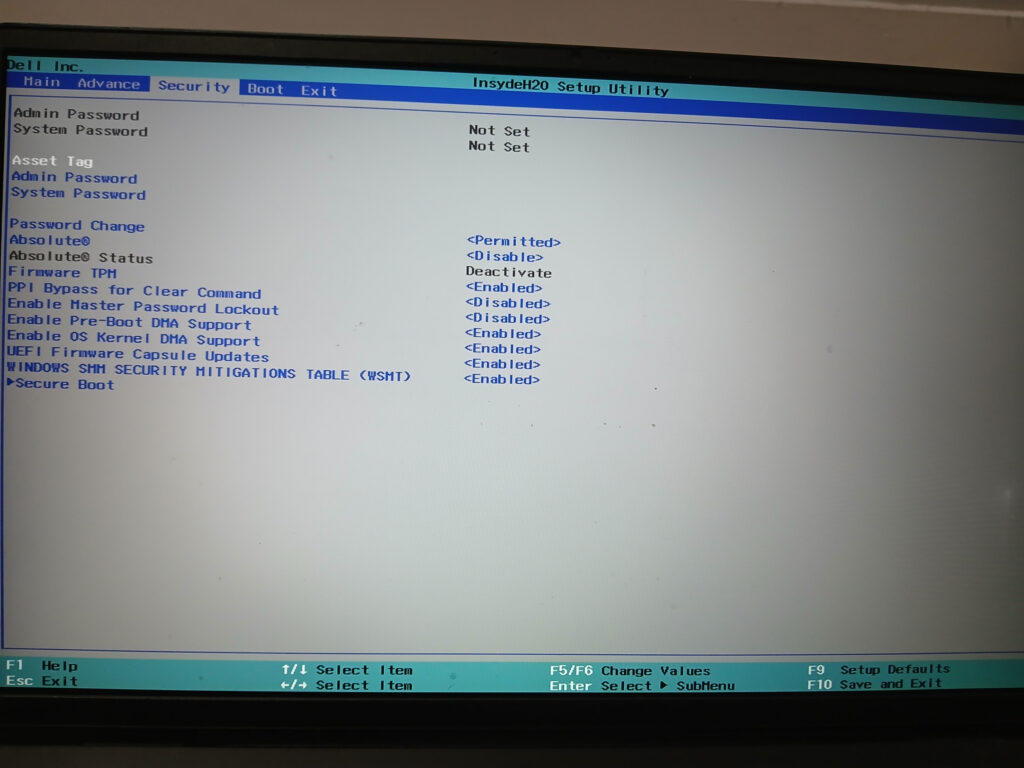
Cyberthreats can expand outside of your operating systems and applications and affect the core functionality of your computer system. If you've ever turned on a computer, you have seen the quick splashscreen of your system manufacturer's logo with options to tap a certain key to enter BIOS Settings. Some of you may have played around in the BIOS Setup to enable or disable certain settings.
There are two main types of BIOS: the Extensible Firmware Interface (EFI) BIOS and the Unified Extensible Firmware Interface (UEFI) BIOS. Older machines typically use the traditional EFI BIOS, while modern machines almost always have the UEFI BIOS. The security recommendations in this document apply to both.
In short, the BIOS is a piece of firmware that resides in a system's non-volatile memory and is responsible for initializing and testing system hardware components and management functions when the system is powered on. If a device has any external components like graphics cards or RAID controllers, they typically come with their own dedicated BIOS firmware known as Option ROMs. Once the BIOS has initialized and tested the system hardware components, it boots the installed operating system kernel. When the kernel is fully loaded, control of the system is passed from the BIOS to your operating system for you to log in and begin your work.
The BIOS clearly has a lot of control over your system. It is responsible for the very functionality of the system components. I think you can see where this is going. Something so vital to the availability of your computers is an enticing target for threat actors. Attacks on your system BIOS may not be as common as attacks on your OS and applications. BIOS attacks are usually part of a targeted cyberattack seeking to obtain long-term persistence in your network environment. Because the BIOS cannot be scanned by the anti-malware software on your OS, BIOS malware can remain undetected for a very long time. Your BIOS could be infected right now, and you would never know.
Some of the most common cyber threats targeted at BIOS/UEFI firmware are rootkits and bootkits. A rootkit is an extremely stealthy and sophisticated piece of malware that embeds itself in the BIOS, gaining high privilege access to critical system components. Rootkits install persistence mechanisms that allow them to regenerate and maintain their access after every system reboot. On the other hand, bootkits specifically target the boot process of the system. This allows threat actors to achieve high privilege access to the system before the OS even loads. The persistence capabilities of these pieces of malware allow them to continue re-infecting systems even after the hard drives are wiped.
You can secure your BIOS/UEFI firmware with the following controls:
Add a BIOS Administrator password: while this may be a pain, setting a password on the BIOS prevents unauthorized changes being made to the firmware. This practice is especially recommended for servers. Make sure to set a password following your Password Policy and store it appropriately.
Add a BIOS User password: System BIOS firmware also provides the option to set a User password. When the system attempts to boot, it will require the User password to be entered before it completes the process. This security control prevents unauthorized users from even getting to the computer logon screen at all. I highly recommend enabling this functionality on servers and systems residing in public areas.
Update the BIOS: this is a step that many PC owners forget. Vendors release patches for the BIOS firmware regularly. Major PC vendors typically include the BIOS updates in their proprietary firmware update tools, like HP SupportAssist or Dell SupportAssist. Others require you to download the firmware on a USB flash drive and install the update manually within the BIOS. Tread with caution when updating the firmware, as an error in the process can result in a non-functional system.
Use Secure Boot: Secure Boot is a verification component that ensures a system’s UEFI firmware has not been tampered with. Secure Boot will store the signatures and checksums of each trusted component in either the system’s Trusted Platform Module (TPM) or NVRAM. When a system boots, each component will be validated against its checksum/signature. Secure Boot will stop any invalid component from loading.
Disable Legacy Boot: Relating to the previous tip, make sure Legacy Boot remains off on your systems except in cases where you need it to install an operating system. Secure Boot can conflict with some OS installs. Otherwise, make sure Legacy Boot remains off.
Disable Unnecessary Boot Options: Once your systems have been imaged with your OS of choice, it is a good idea to disable booting from CD or USB in the BIOS. Attacks can use live USBs to boot directly into an OS without installing it. With this functionality, they can perform high-level changes to systems. At the very least, make sure to disable this functionality on systems residing in public areas.
Keep the TPM on: A Trusted Platform Module (TPM) is a functionality in UEFI firmware that allows your system to store cryptographic keys. This feature enables many important security controls, from drive encryption to Secure Boot. Modern Windows operating systems mandate a TPM. When configuring new systems, enter the BIOS and ensure that the TPM is enabled and stays enabled.
Accessing the BIOS is generally easy. As soon as your computer boots, you start spamming a specific key that directs you directly to the BIOS firmware rather than simply starting the OS. Below are the BIOS keys for different manufacturers:
- Dell = F2
- HP = F10
- Lenovo = F1 or F2 (depends on model)
- ASUS = F2 or Delete
- Acer = F2
- Samsung = F2
- LG = F2
- Apple = Option or Alt (Startup Options)