As an employer, you probably have a large degree of trust placed in your employees. You expect them to perform the tasks for which they are paid and not abuse any corporate resources. However, you cannot just depend on trust when it comes to cybersecurity. Employees can use their business machines to access inappropriate or malicious content, potentially damaging your digital assets. There is also the possibility that malicious resources can be accessed at no direct fault of the employees, for example, malicious email links or typo-squatting domains. In the dangerous world of the modern Internet, it helps to have a comprehensive content filtering solution in place on any business network.
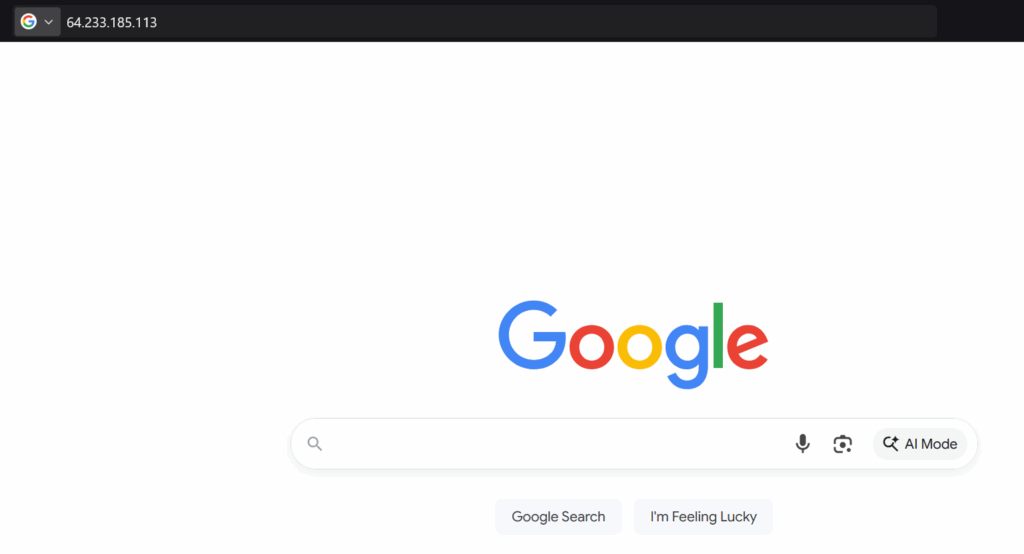
Websites are typically blocked by their DNS address. The Domain Name System (DNS) is the protocol that resolves a domain name to an IP address. Networks don't talk in human language; they need numeric addresses to communicate. For example, DNS will resolve www.google.com to the IP address 64.233.185.113.
DNS resolution is provided through a hierarchy of DNS servers. If you want to filter content on your business network, you can do it at various points in the resolution process. The various options are described below.
Hosts File
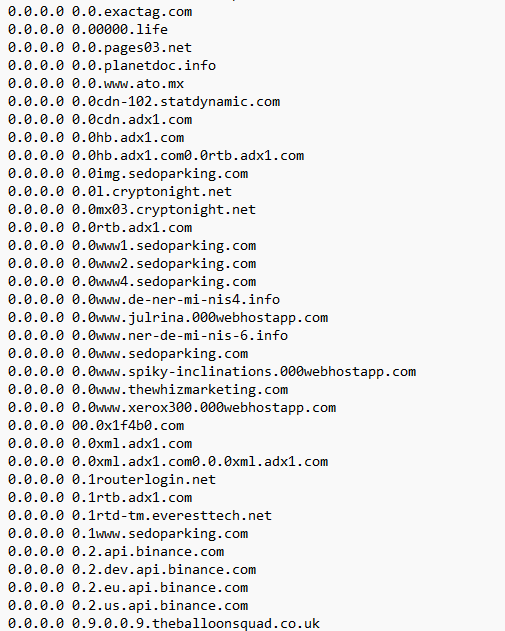
Each computer has its own hosts file, which is a local mapping of domain names to IP addresses. The hosts file is consulted first in the DNS lookup process. If the appropriate name resolution is found in the hosts file, it is processed, overriding the need to contact a server. The hosts file is also configurable, meaning you can specify desired DNS results by entering them. You can block websites via the hosts file if you wish. Be aware that if you use this option, websites will only be blocked on the local computer where you edited the hosts file. There is no network-wide DNS filtering with this option. However, you can configure one large, master hosts file with all the blocked websites you want and then deploy it to each workstation in your network. Addresses are blocked in the hosts file by pointing the domain name to a non-routable address, such as your local machine's loopback address, 127.0.0.1. or 0.0.0.0.
This GitHub link provides a large archive of different host blocklists. Here are some examples:
You can copy the raw files and paste them into your existing hosts file, or create a separate hosts file in Notepad and deploy it to each workstation in your environment. Make sure that you override the existing hosts file if you are deploying one to multiple machines.
An upside to the hosts file approach to content filtering is that since the domains are blocked at the workstation level, the blocks persist even if the device leaves your company network. This makes it a useful approach if your business frequently utilizes BYOD and Remote Access connections.
Third-Party DNS Filtering
If you have a large network environment and want a more centralized/organized approach to content filtering, you can purchase network-wide DNS filtering from various providers. Two of the most reputable providers are Cisco Umbrella and CloudFlare. These services are configured by pointing the DNS servers of your internal network out to the provider's servers. These services usually focus on blocking malicious websites, but can be heavily configured by customers to block many categories of websites.
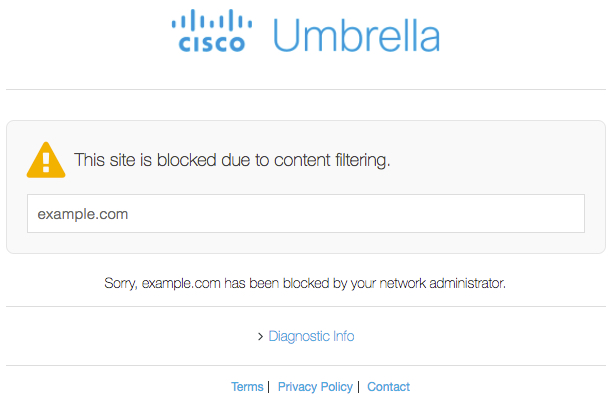
One of the most popular and simple DNS Content Filtering solutions is Quad9, which is a free public DNS service that helps filtering malicious websites.
Pi-Hole
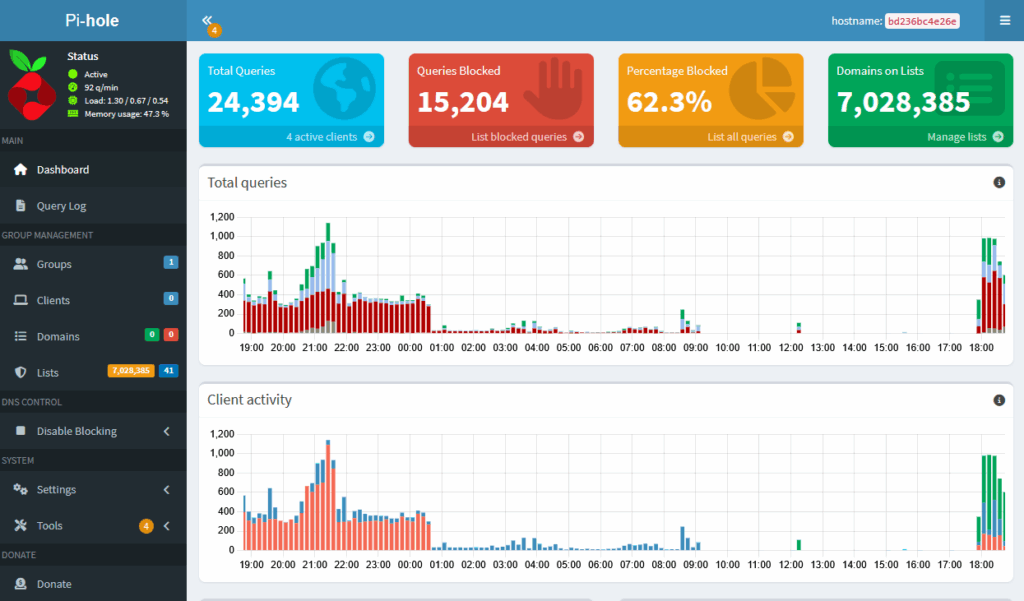
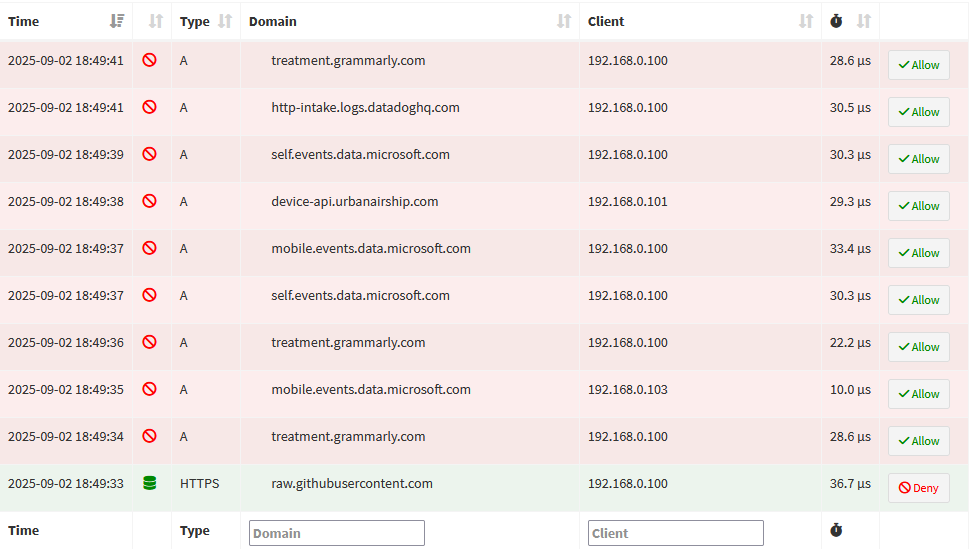
Pi-Hole is a free DNS sinkhole platform that allows you to host your own DNS filtering service with your own configurations. Pi-Hole's main selling point is as an ad/tracker blocker. However, you can add your own choice of blocklists to your liking. Pi-Hole can be run on a variety of devices. You can host it on a Raspberry Pi if you want a lightweight option. I have found that the best performing deployment of Pi-Hole is as a Docker container hosted on a Linux system.
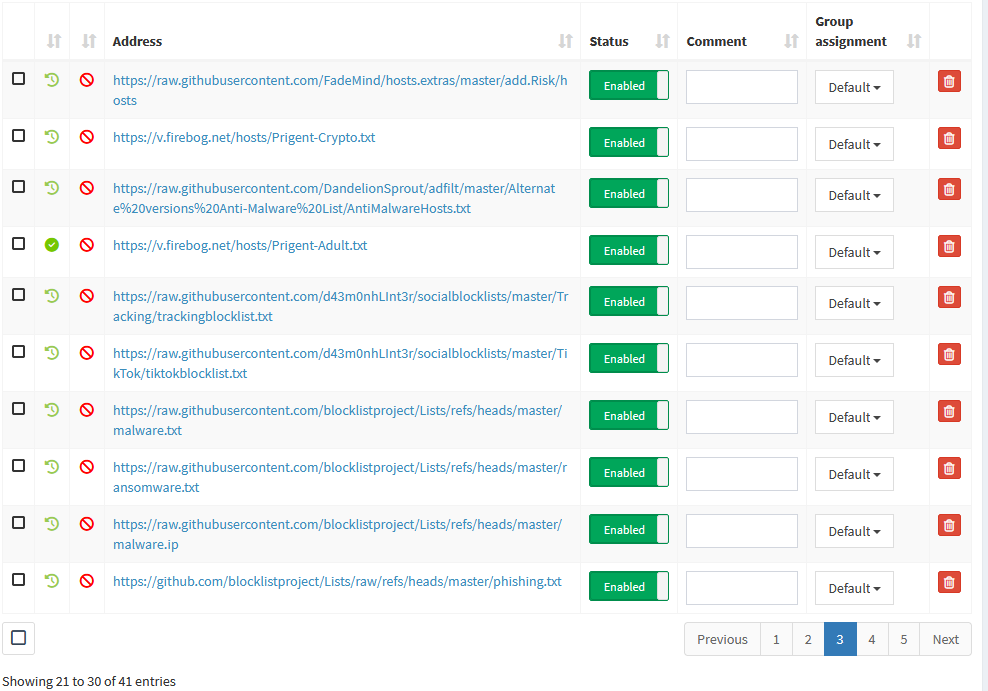
Configuring Pi-Hole is as simple as spinning up a Docker container and pointing your network's DNS to the hosting server. Pi-Hole can also function as a DHCP server if you wish to offload the DHCP service from your router. Once you have done this, you can begin uploading blocklists on the Pi-Hole dashboard. There is a wealth of pre-configured blocklists on the Internet. This GitHub link contains great lists with a large number of entries in various categories.
For the average small business environment, I highly recommend Pi-Hole as the most effective DNS content filtering solution at no cost.