The organization SHALL implement and maintain a strategy for managing endpoint devices and other network resources within the workplace. The chosen strategy SHALL be appropriate for the specific work environment and established risk appetite.
A large number of cybersecurity issues in business environments stem from the way in which devices are managed. Individuals who are not well-versed in IT administration are often unaware of how exactly a network infrastructure should be consolidated and managed. Many small business owners simply purchase a batch of systems, configure them out of the box, and hand them out to employees. This means that employees are receiving unmanaged devices and using them with local accounts, most likely ones with admin/root privileges. Microsoft Windows directs users to create an Administrator account right out of the box, and this is usually what users stick with. With such a widespread lack of centralized control over devices, businesses are essentially asking for problems. Risk increases substantially when organizations don't have control over their assets. Threats such as data leakage, system compromise, privilege escalation, and Shadow IT are practically guaranteed to occur. Every business of any size should develop a strategy for how its devices will be managed. In traditional local area networks, there are two standard models for how endpoints can be managed: Workgroups and Active Directory Domains.
Workgroups
For businesses containing fewer than ten local workstations, the best endpoint management strategy is often to set up a simple old-fashioned Windows Workgroup. A workgroup is a logical collection of workstations on a LAN that share common resources and responsibilities. It is the most basic network setup for a computer network. Devices organized in a workgroup can share printers, files, and even Internet connections. This allows for a degree of visibility and collaboration between devices, even though they are not logically networked together by a server.
To set up a Windows workgroup, one needs to start by ensuring that all endpoints are properly imaged, configured, and connected to the same network segment. Since there is no centralized security management, admins have to go to each computer one by one and configure them individually. Even with a few computers, this is pretty inconvenient and time-consuming. Luckily, some tools speed up this process. You can configure a Provisioning Package with Windows Configuration Designer to apply software packages, naming schemes, and wireless network connections to devices. Local Group Policy templates can then be used to apply baseline settings to each computer.
Once every endpoint is configured, they can be connected to a workgroup using the System Settings snap-in. This is accessed via Settings -> Domain or workgroup -> Change. The workgroup should be highlighted by default, but admins will need to change the workgroup name to a common identifier, usually the business name. This name will be applied universally across every system you want to include in the workgroup.
Once the endpoints have all been connected to the desired workgroup, they can be configured to share various network resources with each other. The appeal of a workgroup is that users can have a small community of printers, computers, and files that are shared among them. This is great for highly collaborative environments that require data to be viewed and modified by different employees. However, to make files and printers available over the network, Network Discovery needs to be turned on. This is done by accessing Control Panel -> Network and Internet -> Network and Sharing Center -> Change Advanced Sharing Settings, and then turning on Network Discovery and File & Printer Sharing.
Printers and files can be shared using the following paths:
- Printers: Settings -> Bluetooth and devices -> Printers and Scanners -> select your printer -> Printer Properties -> Sharing Tab -> Share this printer.
- Files/Folders: Right-click the file of choice -> 'Show More Options' -> 'Give access to' -> 'Specific people', then choose users to share with.
An inconvenient issue arises with sharing resources in a workgroup. For users to be able to access resources on each other's devices over the network, they need to have individual user accounts set up on each other's devices with identical usernames and passwords. This means that for the workgroup to function properly, the administrator will need to create a copy of every user account on every computer and find a way to get each user's unique password on every one. Not only is this inconvenient to set up, but what will happen when passwords expire, and users have to choose a new one? The administrator will need to get the new password synced across each computer again.
You can start to see why a workgroup isn't the most conventional network structure, and why it can become a nightmare for businesses with more than a few endpoints. There is a way to make file sharing a bit easier in a workgroup deployment, and that is by using a dedicated Network Attached Storage Device. By deploying a NAS on the LAN, businesses can configure it to function as a mini domain controller, specifically for file sharing. After a NAS has been connected to the local network and assigned a static IP address, users can create file shares to store data in. For security and organization, there should be a strategy and naming conventions for creating folders and distributing data. After the file shares are created, they can be mounted on each endpoint so that they appear as an attached secondary hard drive. When employees want to share files/folders, they will follow the normal process specified earlier, only the data will be stored and shared on the NAS rather than their device. Each employee will need a dedicated user account on the NAS operating system itself. The NAS accounts can hold the same password as the local Windows accounts. For even better security, the accounts can use separate passwords. This is a good tactic for slowing down lateral movement if a threat actor were to compromise either the NAS account or the Windows account. Since file sharing is done through the NAS, there is no longer a need to share files from the endpoints themselves, and thus no need to create many different user accounts on each computer.

Active Directory Domains
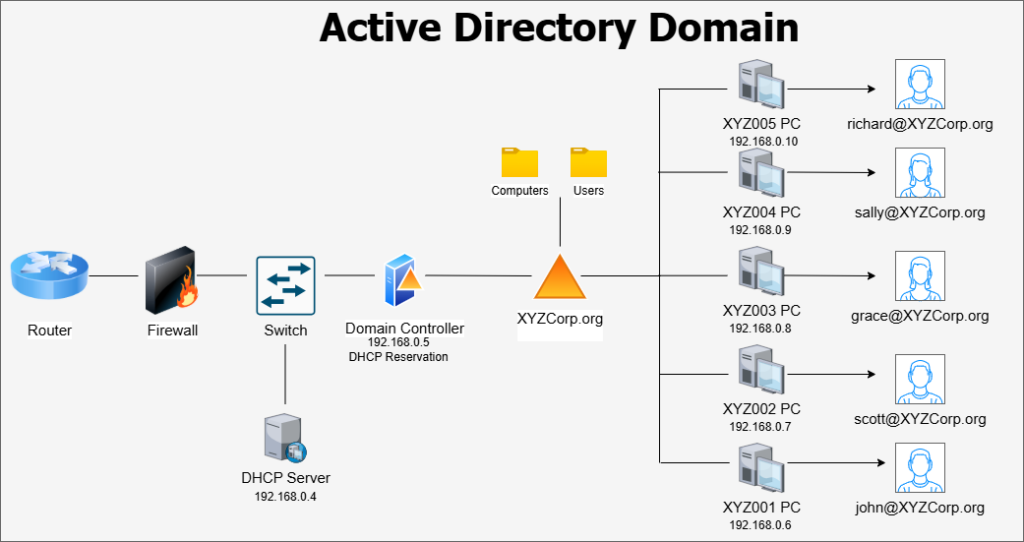
Active Directory Domain Services, a feature of the Windows Server OS, has long been a staple of enterprise IT management. Active Directory allows organizations to centralize network resources, including users, computers, and groups, within a Windows domain (ex, mycompany.org). The domain stores its resources on one or more Windows Servers called Domain Controllers. In a domain network, the organization’s local identities, computer configurations, and security policies are all managed centrally, providing greater control over device settings and network security.
Windows Server is a pricey operating system, and it can be tough to justify the cost for a smaller business. Pricing for Windows Server 2025 can be found here. The general rule passed around in IT education is that any business with more than ten users and computers should implement Active Directory. Generally, any business encountering issues with device management and accountability should at least consider switching to a domain-managed network structure.
One of the most powerful features of an Active Directory Domain is Group Policy Management. Group Policies are security templates where administrators can configure very granular settings for endpoints attached to the domain. Everything from desktop appearance settings to networking behaviors can be configured through Group Policy. In addition to Windows settings, some major software programs offer templates that can be imported into the Group Policy dashboard to configure settings for those programs. These templates are downloaded in ADML/ADMX format.
Building an Active Directory Domain is a complex process that requires a certain level of experience with Windows Server and LAN concepts. If a business's senior management believes that it requires an AD Domain for better network resource management, it must ensure that the prospect is thoroughly reviewed with a risk assessment conducted on the potential effects of switching. Are there qualified IT staff within the business who can build the domain from scratch? Will a third-party IT consultant be needed to build it? Are the endpoints currently on the network capable of connecting to a domain? All of these issues should be addressed, and a cost-benefit analysis should be prepared. If implementing a local Active Directory domain is not feasible, or if the business utilizes primarily mobile devices in its environment, it may be appropriate to look into an alternative method for device management, such as Mobile Device Management (MDM) platforms.