
One of the most important aspects of ensuring system availability and continuity is keeping track of system health and security status on a regular basis. It may be tempting to simply setup a device and be done. However it is essential that regular attention is paid to the devices to catch and resolve issues when they appear. The collection of system logs and monitoring of behavior will help you catch any problems as soon as possible. Logs can provide references to security incidents and help forensics teams understand what happened. System monitoring tools can provide graphical dashboards to alert administrators on hardware resource usage and system temperatures. Implementing and configuring a stable log collection and system monitoring program should always be a priority and will go a long way to help save time and money for your organization.
Windows Event Viewer
The Event Viewer snap-in in Windows provides a holistic view of all the activity taking place on a system. Specific events are organized into dedicated categories:
Custom Views -> Administrative Events logs all Critical, Error, and Warning events from all administrative accounts on the system.
Application logs activities involving individual applications and their behavior within the OS.
Security logs all activity regarding user account changes, privilege elevations, permission changes, group membership, and file/system component behavior.
Setup logs all events relating to Windows setup, installations, and updates.
System logs all events involving low-level activity on the Windows OS and its essential components.
Within each category, you can sift through the associated logs and use the General/Details pane at the bottom to analyze each event.
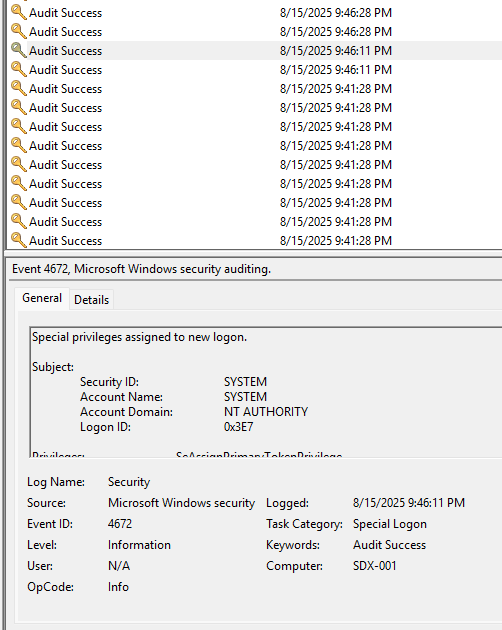
You can follow along with either the Event IDs or the Task Category descriptions as you sift through the many entries.
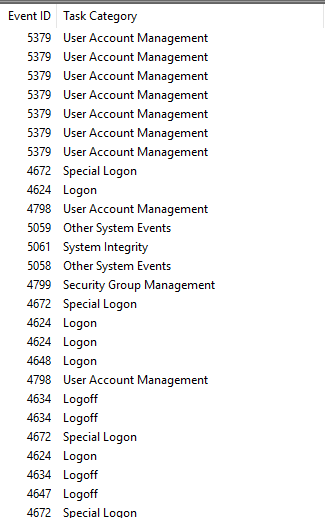
In most cases, if you're sifting through Event Viewer, you are looking for something specific. With the hundreds and thousands of events generated on a busy system, it isn't feasible to spend days combing through them for potential evidence. Luckily, the Event Viewer snap-in provides features to narrow down your search.
The Filter Current Log setting allows you to narrow down the events in the current log by criteria such as time, event severity, source, EventID, user, and computer. If you are looking for a specific event and have lots of information to guide your search, this is a great feature.
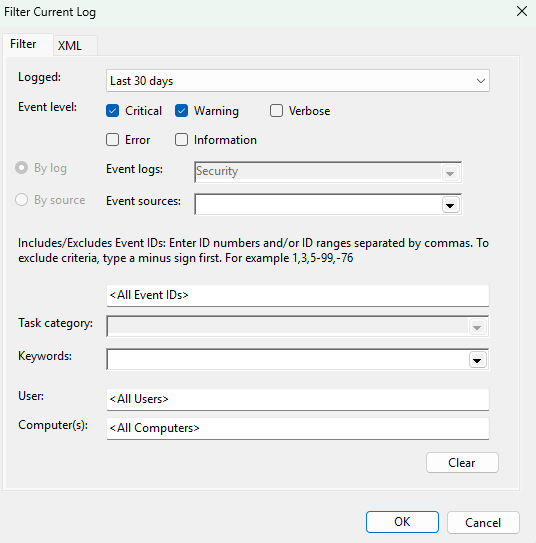
The Find feature provides a search box that you can use to search for specific keywords present in the logs. Each time you press the Find Next button, the log will search for the next event in the list that matches the keywords.
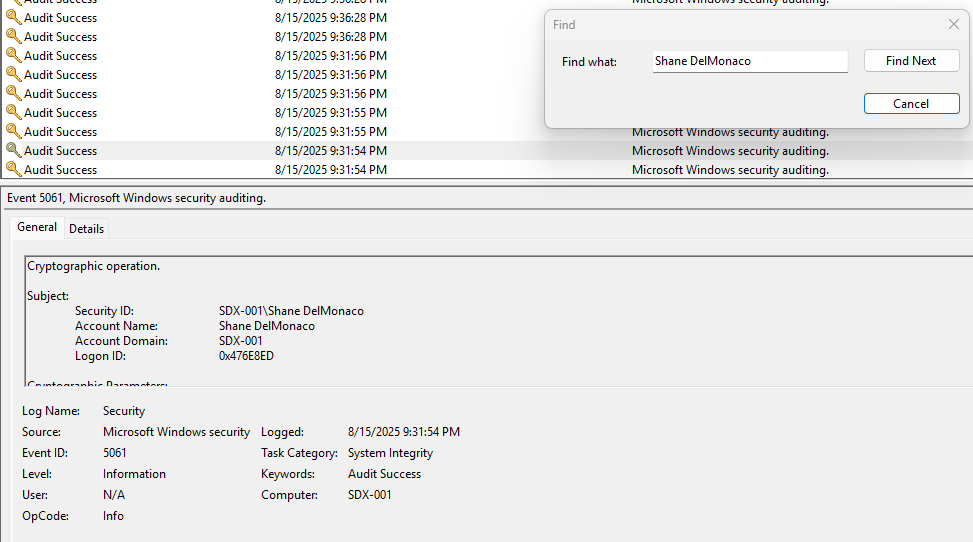
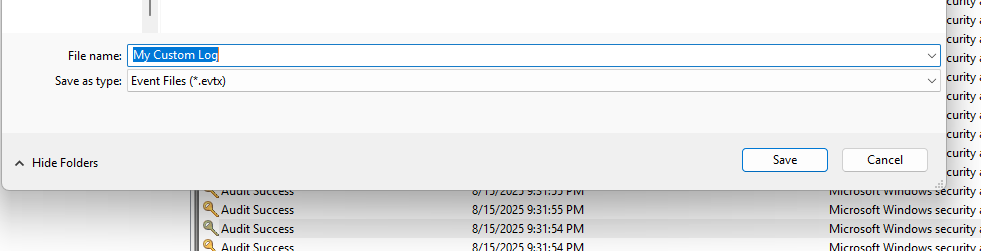
You can save your personalized log queries for further analysis using the Create Custom View setting in the Actions pane. You can also export entire logs from the Event Viewer, either an Event File or XML File.
In a large network environment, you are likely going to want to have a centralized system to collect logs from all Windows workstations. There are several methods to accomplish this. Windows Event Forwarding (WEF) is a Windows feature that allows individual PCs to forward their logs to a centrally designated PC known as a collector server. Logs are sent using HTTP/HTTPS and take advantage of Windows Remote Management (WinRM). For a smaller, Windows-designated network, this approach is likely all you need. Follow this guide to set up WEF.
In a larger environment with more devices and even different operating systems, you are likely going to want a vendor-neutral solution for log collection. A Security Information & Event Management (SIEM) system is tailor-made for this. A SIEM digests logs from numerous devices and breaks them down into valuable, easier-to-read insights on its dashboard. Visit this framework's documentation of SIEMs to delve deeper.
Linux Logs
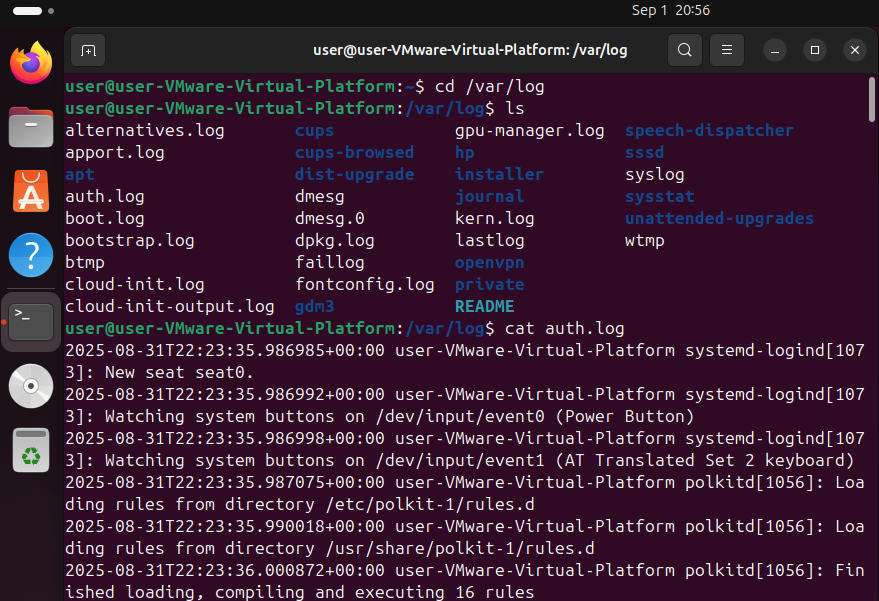
Finding and viewing system logs on a Debian-based system like Ubuntu or Mint can be easy or difficult depending on your familiarity with the command line. Log files can be found by entering and navigating the /var/log directory.
- Authorization Log: /var/log/auth.log
- Daemon (Background Processes) Log: /var/log/daemon.log
- Debug Log: /var/log/debug
- Linux Kernel Logs: /var/log/kern.log
- System Log: /var/log/syslog
Individual applications may create their own logs in the /var/log directory. They can usually be identified based on their names, such as /var/log/apache2 for the Apache HTTP Server.
To navigate to and view Linux logs, open a Terminal and use the cd command to change to the /var/log directory, the ls command to list the logs, and the cat command to show the output of your desired log. You can also use the head and tail commands for easier reading.
If you are running multiple Linux systems in your workplace, I recommend using the SIEM solution to collect and monitor logs.
Just as with Windows logs, Linux logs can be forwarded to a central location for easier analysis. With Linux, we can use the rsyslog daemon to do the job.