Depending on the size of your business, the Wi-Fi technology you use can differ. Organizations with only a handful of employees working in a small office are likely to use a basic SOHO router. These are the routers you get from your local Walmart for usually less than $200. These “routers” aren’t just routers. A SOHO router is a unified piece of network technology that includes routing functionality, a network firewall, a wireless access point (WAP), and a basic network switch. If your network infrastructure utilizes one of these devices, setting up Wi-Fi is relatively simple.
Organizations with larger facilities and more employees will have dedicated network appliances instead of simple SOHO routers. Wi-Fi is usually distributed through several independent Wireless Access Points controlled via a Wireless Access Point Controller. The WAP controller allows geographically distant access points to be configured in a single Wi-Fi network called an Enterprise Service Set Identifier. This system is what allows large facilities like college campuses to use a single Wi-Fi network in a geographically large setting.
Regardless of what infrastructure is powering your organization’s wireless network access, the same security settings are applicable. They can be configured either from a SOHO router’s default gateway page or from a WAP Controller’s firmware. Consult your networking hardware’s documentation for directions on where to access Wi-Fi configuration settings.
Once you have administrative access to your Wi-Fi settings, implement the following Wi-Fi settings for optimal network security.
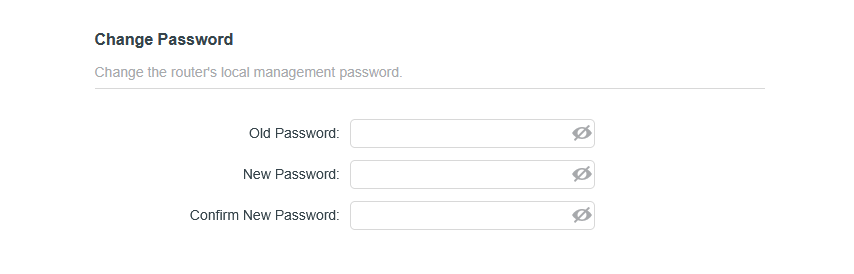
Change Default Credentials
The first thing you should do when setting up a SOHO router or wireless access point is change the default credentials. Each device manufacturer ships their devices with their custom default credentials, which can all be found online. If you do not change the account name and password for your router management firmware, a threat actor can google the device vendor's default credentials and log into it themselves. This high-level access will allow them to wreak havoc on every part of the subnet.
Lock Down Management Options
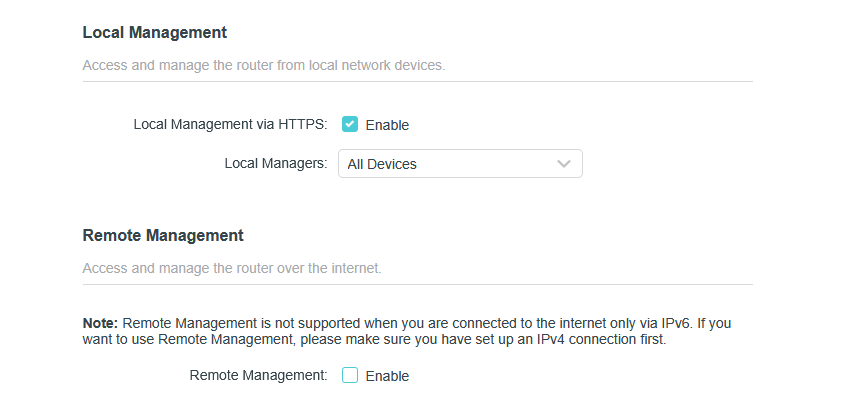
Connecting to a network device to perform maintenance can be done in a variety of ways. Some are much more insecure than others. Always ensure that Remote Management options are disabled. If enabled, this would allow users on insecure networks, such as the Internet, to access your device's configuration settings. If you have fewer than six users and computers present on your network on an average day, you can keep Local Management over HTTPS enabled. However, in an extensive network where you have less control over insider activity, it may be a good idea to display configuration over HTTPS. The most secure way to configure your network devices will always be over a physical connection such as Serial, USB, or Ethernet. Whenever possible, make sure to opt for physical connections.
Hide Your SSID
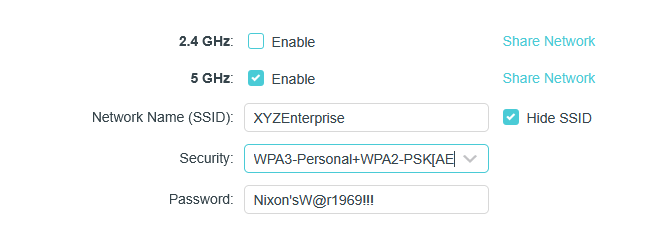
Your Service Set Identifier (SSID) is what allows users to identify your network. It is a basic setting that everybody who owns a wireless router has set up. However, being able to locate your network can pave an easy path for potential attackers.
Think about walking down Main Street in your hometown. You likely have dozens of small businesses packed together around the busy street. If you open your phone and search through Available Networks, you’re likely to see dozens of networks with their owner easily identifiable by SSID. You may even see a few Open Wi-Fi networks.
Your business Wi-Fi should only be usable by vetted employees. Everybody who needs to use the Wi-Fi should already be on it or know the proper admin to put them on it. Keeping your Wi-Fi blasted out into public areas can paint a target on your network. Many attackers utilize a reconnaissance technique known as “Wardriving”, where they prowl busy areas looking for W-Fi networks to exploit potentially. If your SSID is traceable directly to your business, then potential attackers can find your office and identify potential attack methods.
To mitigate this, select the Hide SSID option in your Wi-Fi controller’s firmware. This setting will stop broadcasting your network SSID, instead requiring users to enter the network name and credentials directly from their device.
Adjust the Transmit Power of Your Wi-Fi
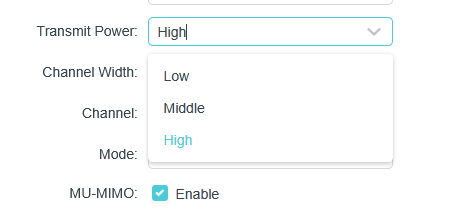
This setting relates to the previous one. If you notice that your company Wi-Fi is still accessible a large distance off premises, then your transmit power is too high. Since anybody can potentially access the network from off premises, it is a best practice to turn down the Transmit Power.
Change the IP Address of Your Configuration Page
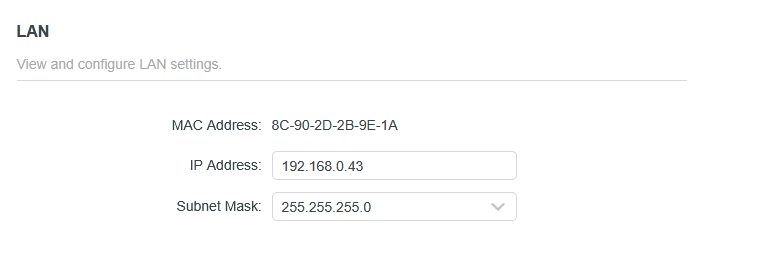
If you are using a SOHO router, you are likely to have either 192.168.0.1 or 192.168.1.0 as the default page for configuring network settings. Since this is the default, attackers know to search those addresses for potential access to network settings immediately. To keep them off track, change the IP of your default gateway interface to a random IP on your network, like 192.168.0.43 for example.
Lock Down the Guest Network
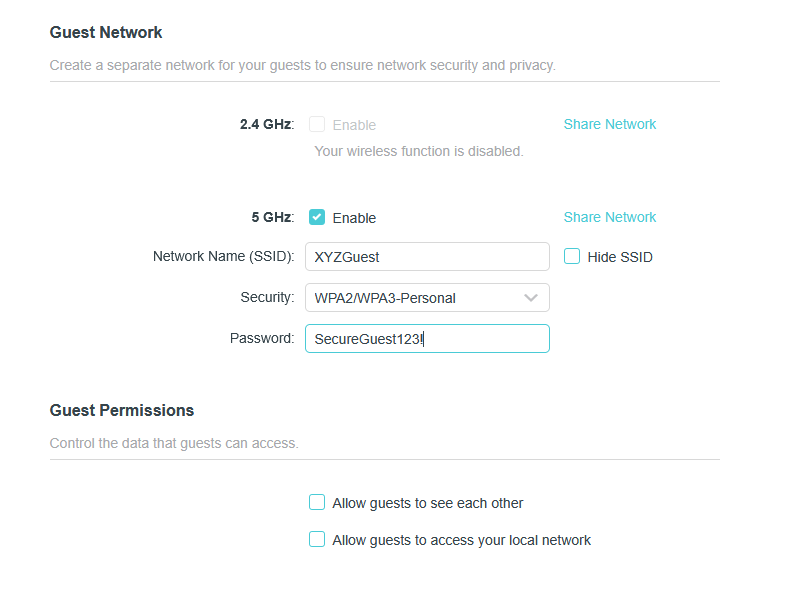
Guest networks can pose a considerable risk to an organization if not properly implemented. Make sure that users of the Guest network have no access whatsoever to any internal resources. The only resource guest users should have access to is Wi-Fi, as per your regulations.
While it may be tempting to leave Guest Wi-Fi open, use a secure password that can be advertised to guests within your facility. If WPA3 security is available, make sure you choose it for the Guest network.
Set a Schedule For Use of Wi-Fi
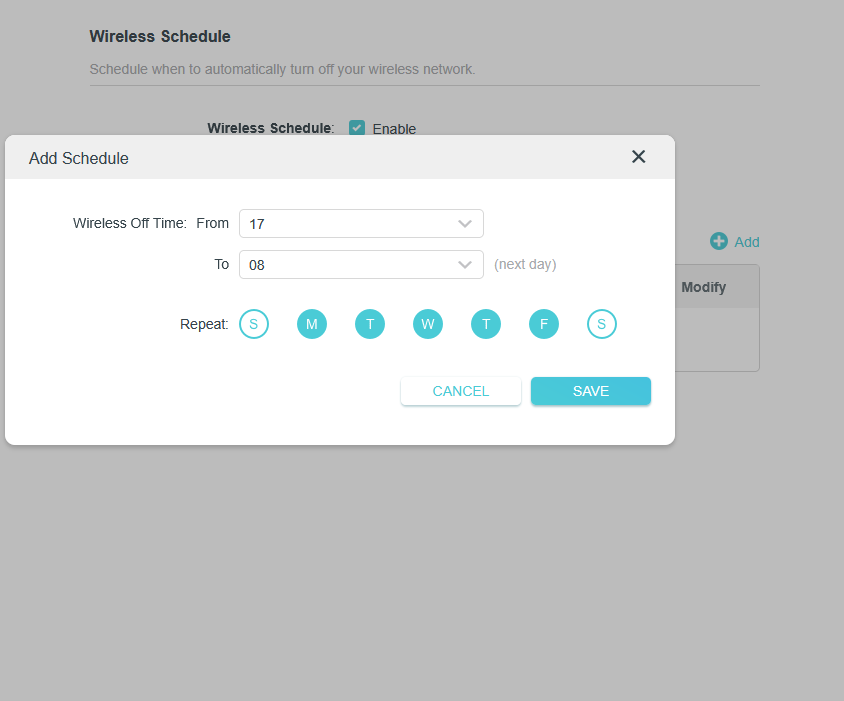
Your Wi-Fi firmware may offer the option to set a schedule for Wi-Fi use. While this is often intended for families with young children, it can be a robust control to help harden access control in your organization.
If your business hours are from 8:00 AM to 5:00 PM every day, you can schedule your Wi-Fi network to shut off after hours. You can also turn the Wi-Fi off completely for weekends and holidays. This is a basic zero-trust approach, ensuring that Wi-Fi access is provided on a Just In Time/Just Enough basis.
Use MAC Address Whitelisting
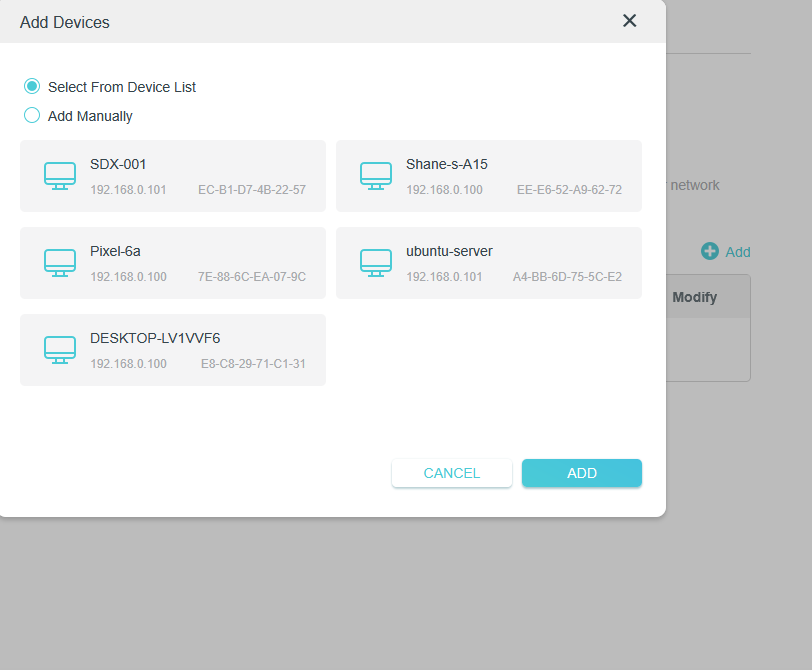
Small businesses with small SOHO networks typically have only a handful of host devices connected to their Wi-Fi. In cases like this, it is easy to implement MAC address whitelisting to enhance security. Some SOHO routers make the process even easier by automatically populating a list of the connected devices.
Bind MAC & IP Addresses
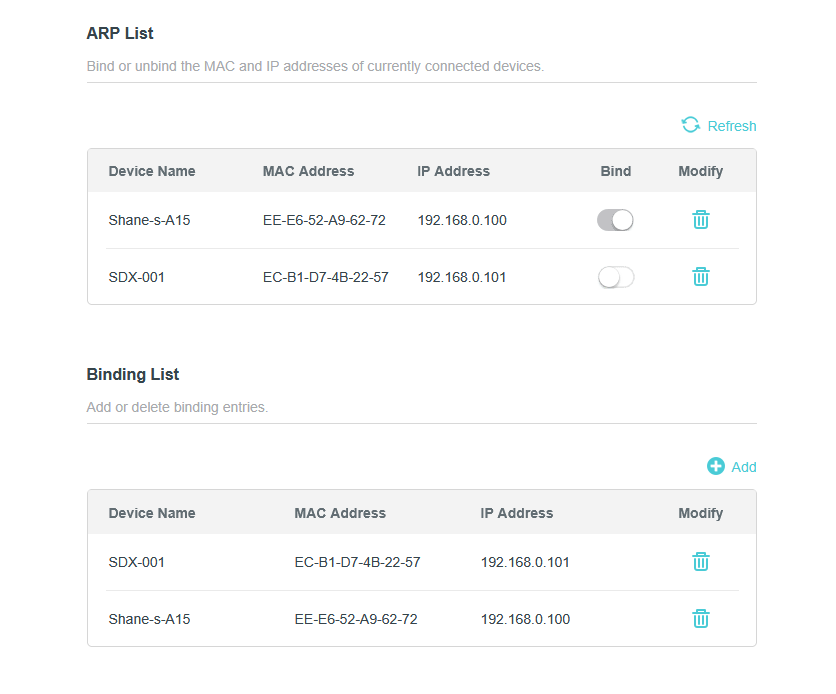
A classic network attack is ARP Spoofing. This is where threat actors manipulate the Address Resolution Protocol (ARP) to attach a legitimate device's (say, a router's) IP address to the attacker's MAC address. If successful, this will result in the traffic designated for the router's IP address going not to the router, but to the attacker's device. Wi-Fi routers and access points may provide the option to bind IP addresses to their currently associated MAC address. By making the two addresses inseparable from one another, attackers will not be able to associate their own MAC address with an IP.
Regularly Update Firmware
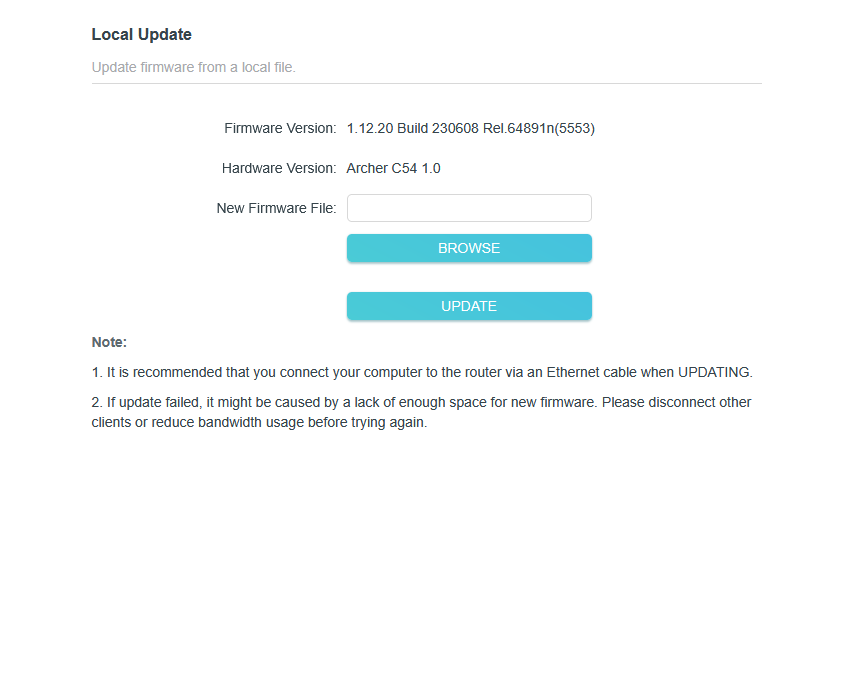
Routers and wireless access points require firmware updates regularly. The vendor sets the release dates of new firmware, so consult with your vendor's documentation for the information. Firmware upgrades should be performed outside of work hours, so as not to interrupt productivity. Follow this framework's guide on setting a Maintenance Window here. Make sure to follow any recommendations that your vendor gives when conducting firmware update.
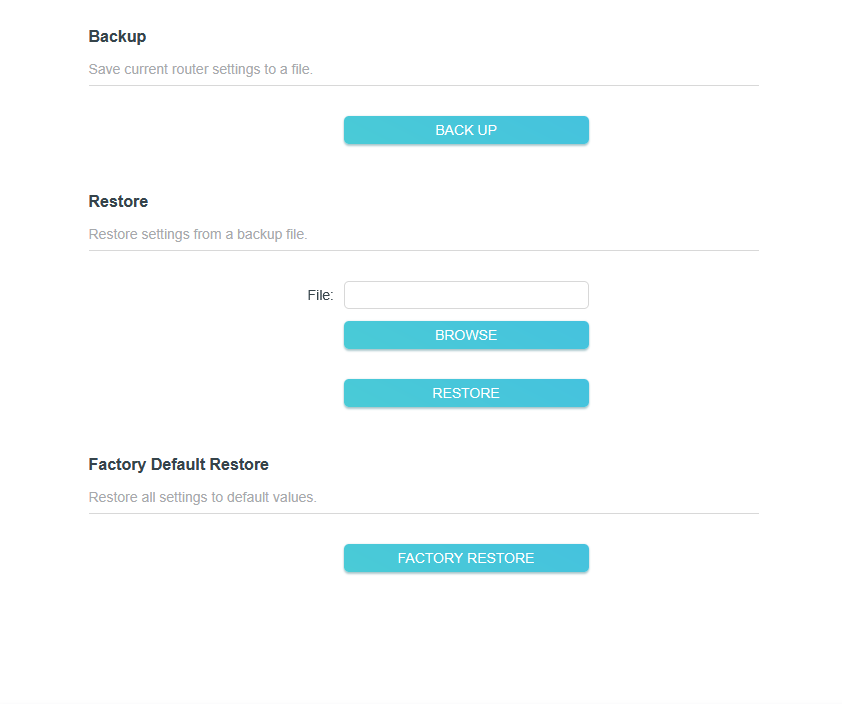
Backup Device Firmware
Whenever you make changes to settings in a router's firmware, the configuration file is updated. It is a good security practice to make a backup copy of your router configuration file every time you make a change. That way, if an incident results in the firmware being reset to factory defaults, you can import the old config using the restore function. (This also applies to managed switches).