Availability is probably the most overlooked part of the CIA Triad. Many focus solely on confidentiality and integrity and forget that ensuring regular functionality and performance on assets is just as important. One issue I have frequently noticed in small business environments is slow device performance. This issue develops overtime if devices are neglected and good maintenance practices aren’t followed. Every computer is going to decline in performance with age, but in the meantime, there are best practices that can be followed to extend the lifetime of company devices.
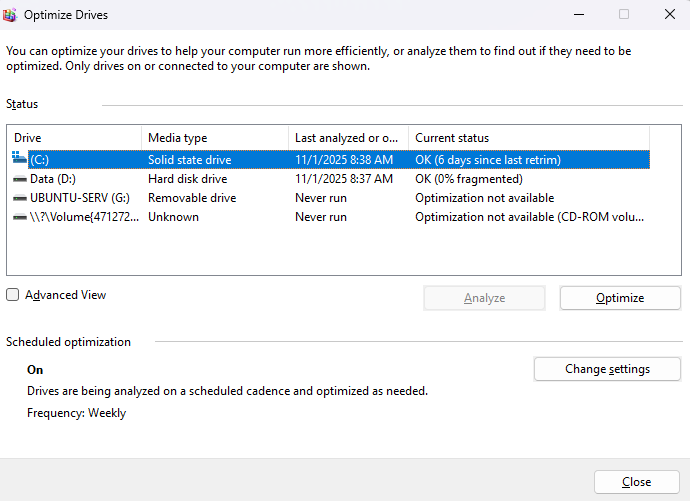
Windows devices have a utility called Disk Defragmentation that is recommended for use on any device using a hard disk drive. Over time, hard disks can become cluttered with vast amounts of data scattered around different parts of the disk. This can hinder performance as the disk needs to search different sectors on the disk to compile data. Disk defragmentation is the process of organizing this data into neat blocks to improve speed. It isn’t necessary to defragment solid-state disks or other flash storage, but it should be done on any spinner hard disk drives. A weekly defragment will usually suffice.
Since business-specific computers are used to perform large workloads, it is common for the host operating systems to accumulate a lot of clutter. Temporary files, memory dumps, error reports, and program cache are common types of useless files that can accumulate and hinder system performance. Luckily, there are built-in and third-party operating system utilities that can be used to regularly clean out these files.
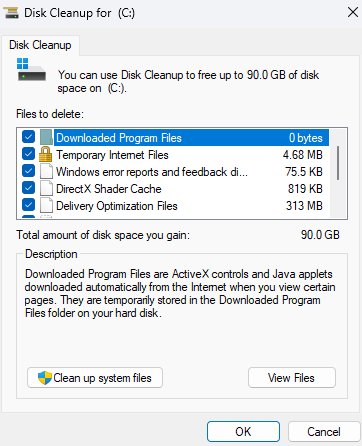
Windows has two utilities that should be used to optimize your system. The first is Disk Cleanup, which has been a longtime staple utility of the Windows OS. Disk Cleanup allows you to specify specific categories of files to delete. It also allows you to clean up core system files. Running this utility occasionally is a great way to keep your Windows system clutter-free. You can also use the Windows Task Scheduler to run the program automatically during scheduled maintenance windows.
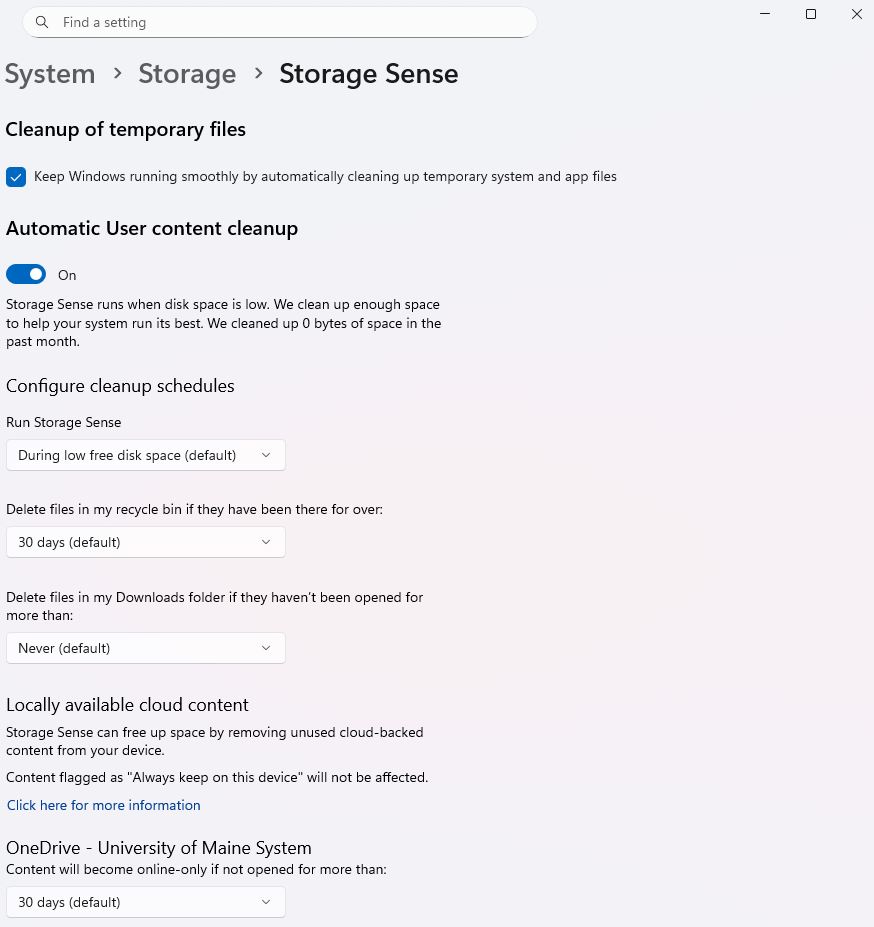
In addition to the Disk Cleanup utility, there is Storage Sense, which is a more user-friendly utility with automation as a key feature. Storage Sense cleans up the same junk files as Disk Cleanup and allows you to configure it to run when disk space is low, or on a daily, weekly, or monthly basis. Storage Sense also allows you to remove “unused cloud-backed content” associated with your cloud-connected account from your Windows device. This is a useful feature if you store most of your data in the cloud. You can use Disk Cleanup and Storage Sense, or one of the other. However, you should always have one enabled.
On Linux, you can optimize systems using a series of handy commands. To make this easier, you can compile the commands into a script and automate it using crontab. You can download the script below and follow the instructions provided to do this.
- Download the above script to your Linux system.
- Make the program executable by running sudo chmod +x /your/download/location/linux_cleanup.sh
- Edit the root crontab by running sudo crontab -e
- Add a line to the file that configres the script to run on a weekly basis, preferrably after regular work hours: 0 3 * * 5 /usr/local/bin/system_cleanup.sh. (Read this guide on cron jobs if you are unfamiliar).
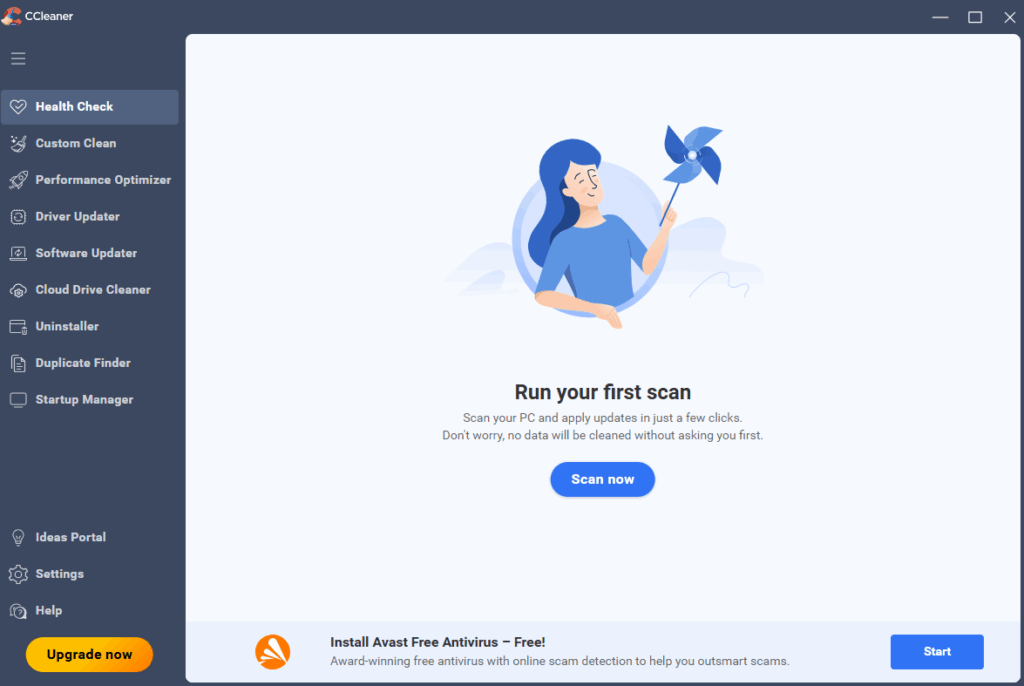
If you want a third party option for optimizing your systems, there are a few genuine, well-regarded options. Probably the most famous is CCleaner, which is a free software that can clean up junk files, the Windows registry, and uninstalling unnecessary programs. The free version of CCleaner is usually a pretty good option, but do keep in mind that it can sometimes be intrusive with program pop-ups. CCleaner also has a version for macOS, making it a good option for multiple operating systems.
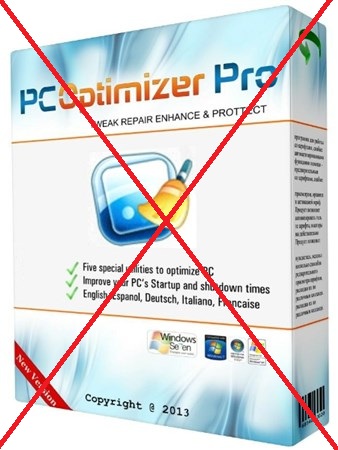
Since this is a cybersecurity framework, it is important to keep in mind that there are thousands of malicious and/or unwanted programs on the Internet that promise through system cleanup and optimization. In realty, these programs can contain spyware, adware, crypto-mining features, and will likely make your system slower than it was before. These programs are a dime a dozen, and some may even feel that the well regarded programs like CCleaner border on adware at times. This is why it is important to weigh whether or not a third party program is necessary. Most systems will be perfectly fine using the built in cleanup tools.
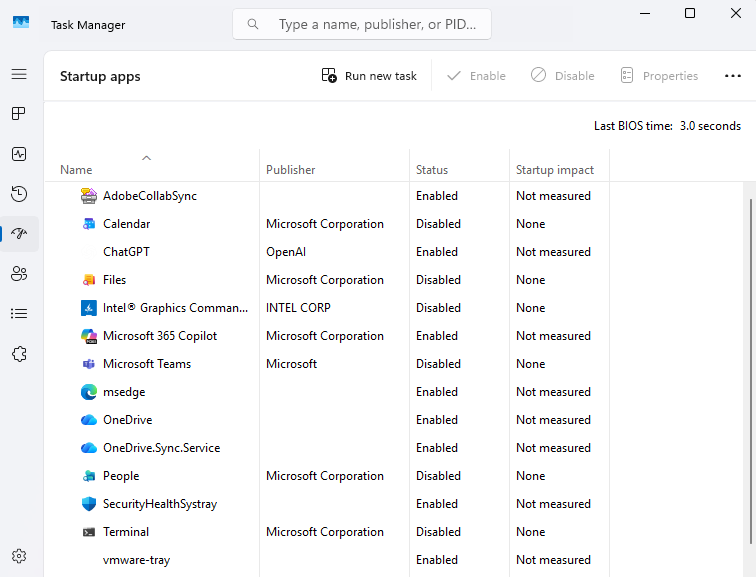
A final tip for keeping smooth system performance is removing unnecessary startup programs. Many programs configure themselves to run as soon as the system restarts for reasons such as application updates and initializing connections. However having a large number of programs running at startup can hurt system performance, especially when you first boot your computer. If there is no immediate reason for these programs to be running at startup, it can help to disable them. This can be done via the Task Manager on Windows or the Login Items setting on macOS. Keep in mind that if you disable programs from running their startup tasks, this means they will need to run them when you open the program later.