Microsoft Windows is by far the most widely used operating system in the market. The simplicity of the user interface and the near universal support by software manufacturers means that most businesses opt for using Windows machines in their network environments. Some small businesses opt for using Apple macOS instead, but for the most part Windows is the default.
The fact that Windows has the operating system market concerned means that most cyber threats today are targeted towards it. While Mac and Linux are not immune to malware, they are generally less likely to encounter effective exploits than Windows systems.
To keep Windows systems secure, there are several OS configurations that can be implemented to lessen the attack surface. At the end of the day, proper user training and following security best practices is the best way to reduce the threat of cyber-attacks. However, implementing these security controls can greatly improve the security of your organization.
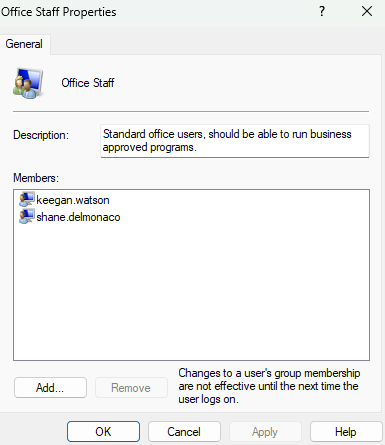
Enforce Use of Standard User Accounts: a common mistake made by many Windows users is defaulting to use the Administrator level account for performing daily tasks. When a Windows machine is first set up, it directs you to create an admin account that has root level privileges over the system. Using this account for daily workflows is a huge vulnerability, as any attacker that manages to compromise the system will have full admin control over the system. This level of access can allow the attacker to wreak havoc on the system and do irreparable damage. I almost always encounter this vulnerability in small business environments. Employees from secretaries to owners all have admin accounts. Instead of leaving the default admin access in place, you should configure a Standard account for each employee. Even owners and IT staff should use Standard accounts for daily workflows. The Standard account allows its user to use all the applications necessary for regular tasks but removes access to low level system configurations. If an attacker manages to compromise a Standard account, they have a much harder time gaining access to critical system functions.
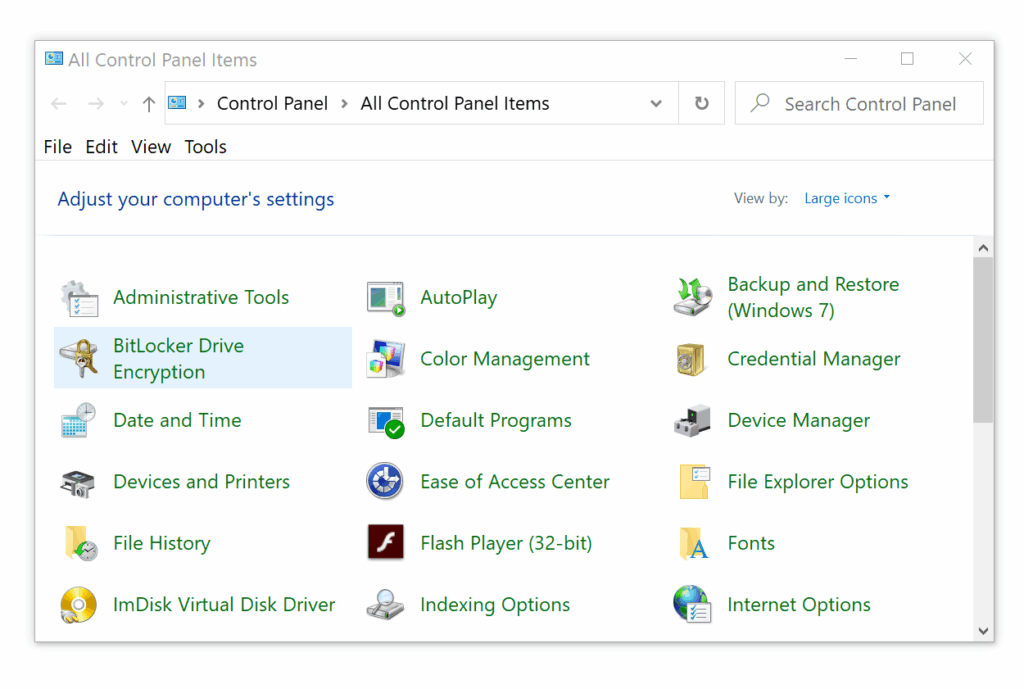
Encrypt storage devices with BitLocker: the protection of data at rest on business systems is critical for ensuring confidentiality. BitLocker is an encryption service that allows users to encrypt the data on their hard drives. If the system happens to be physically stolen, threat actors will not be able to view the contents on the hard drive since it is encrypted. To access the drive, a user must provide a recovery key that only the proper user has access to. BitLocker can encrypt the entire drive at once or encrypt only the currently used space. It is important to note that BitLocker is only available on the Pro, Enterprise, and Education versions of Windows. Your system must also have a Trusted Platform Module and a minimum of two disk partitions.
Ensure that Windows Defender & Windows Firewall are Enabled: Windows has two built-in security services that act as defense for the system. Windows Defender (Windows Security) is the Windows built in malware scanner. Windows Defender can protect your systems against a variety of cyber threats. Defender should always be turned on unless you have implemented a separate third-party anti-malware solution. Windows Firewall is a host-based firewall appliance that allows and blocks connections to systems. While a network firewall is usually relied upon to block malicious external connections, host-based firewalls are necessary to further harden endpoints. Under no pretexts should Windows Firewall be disabled. There are three firewall states for the application: Public, Private, and Domain. All three should remain enabled to protect systems on different network security deployments.
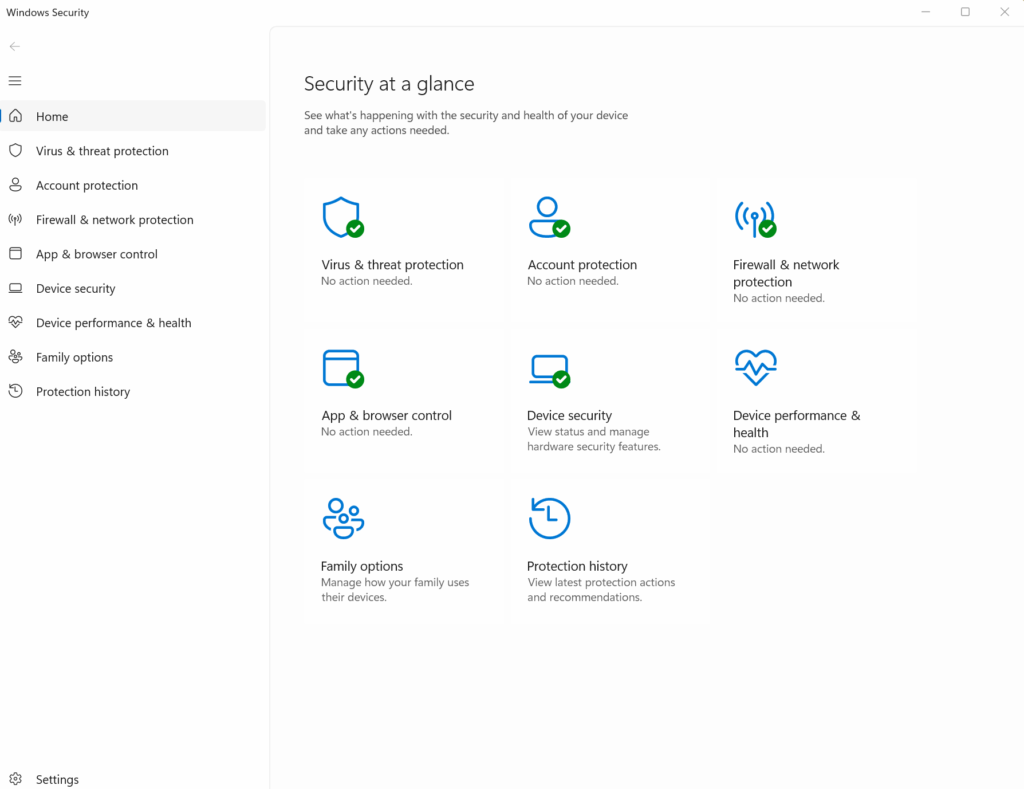
Ensure Windows Updates are Regularly Applied: Microsoft regularly releases patches and system updates to ensure continuing functionality and security of Windows endpoints. These updates are critical for every business network. Most Windows users leave Windows Update settings at their defaults, meaning that updates are downloaded and installed according to Microsoft’s schedule. Users are usually given control over when their system should be restarted to install updates. In a larger Windows network, endpoints will usually be managed, either through Active Directory or an MDM platform like Microsoft Intune/ These deployments offer more administrative control over update deployments. If your organization utilizes one of these platforms, make sure that Windows Update management is configured in a way that suits your organization. If you are not using any centralized management solution, ensure that Windows Updates remain enabled and automatically installed.
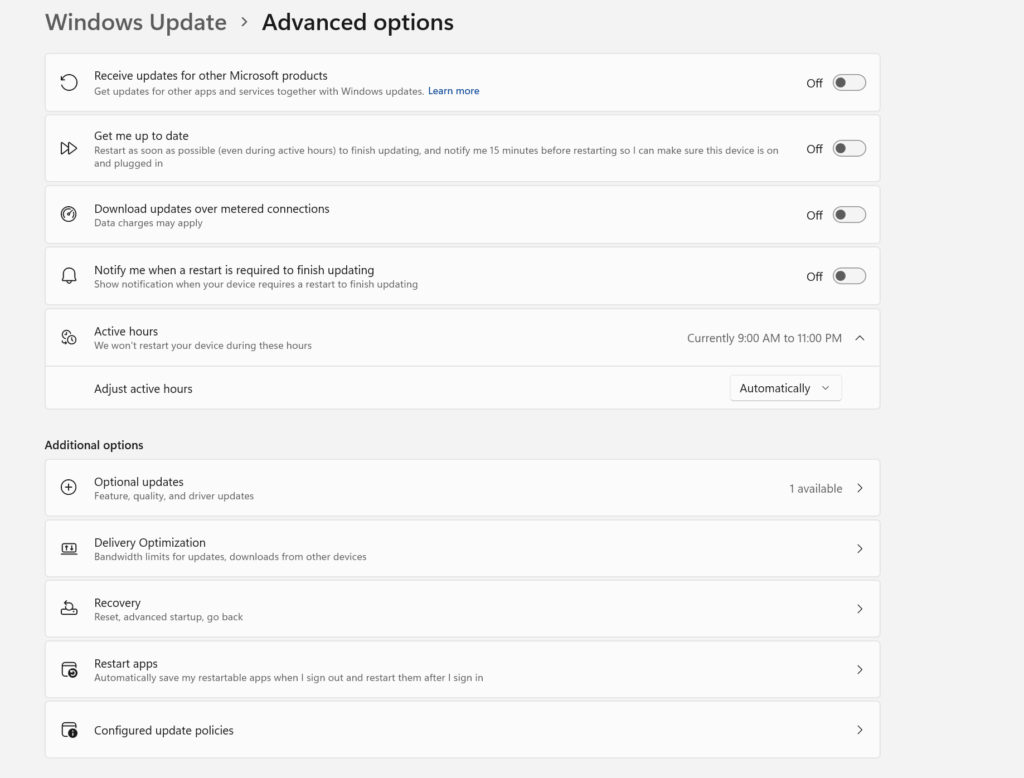
Even with local installation of Windows Updates installed, there are several settings that can be configured to improve user experience:
Pause Updates: Installation of Windows Updates can be postponed for a set period, usually a few weeks.

Receive updates for other Microsoft products: allow Microsoft to install updates for other Windows apps and services alongside the main updates.

Get me up to date: allows Windows to restart as soon as possible to finish update installation; includes a 15-minute reminder.

Download over metered connections: large files like Windows updates can hog data if downloaded over a mobile network. Usually they should be turned off, but you can allow downloads over these networks if you choose.

Notify me when a restart is required to finish updating: this reminds users when Windows Updates have not been completed yet and require a restart to do so.

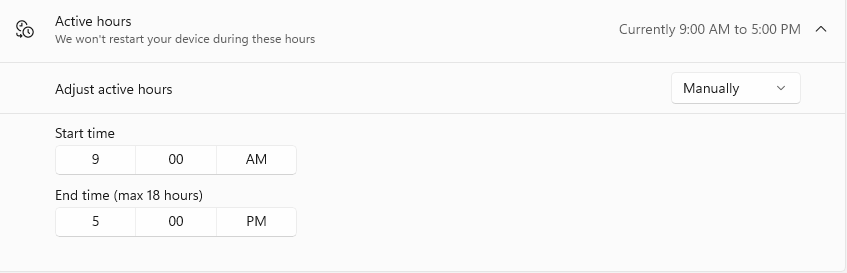
Active Hours: by setting the regular working hours of your organization, you can prevent any restarts from being applied during this time frame.
These security tips are the most basic surface suggestions to keep Windows systems secure. By combining these controls with good user best practices, you can keep your workstations well secure.
However, there are many more security settings for Windows systems that will harden the OS even more. Listing all of them is beyond the scope of this documentation. Two reputable sources for these controls are the Center for Internet Security (CIS) Windows 11 Benchmark, and the Microsoft Security Compliance Toolkit Windows 11 Baseline.
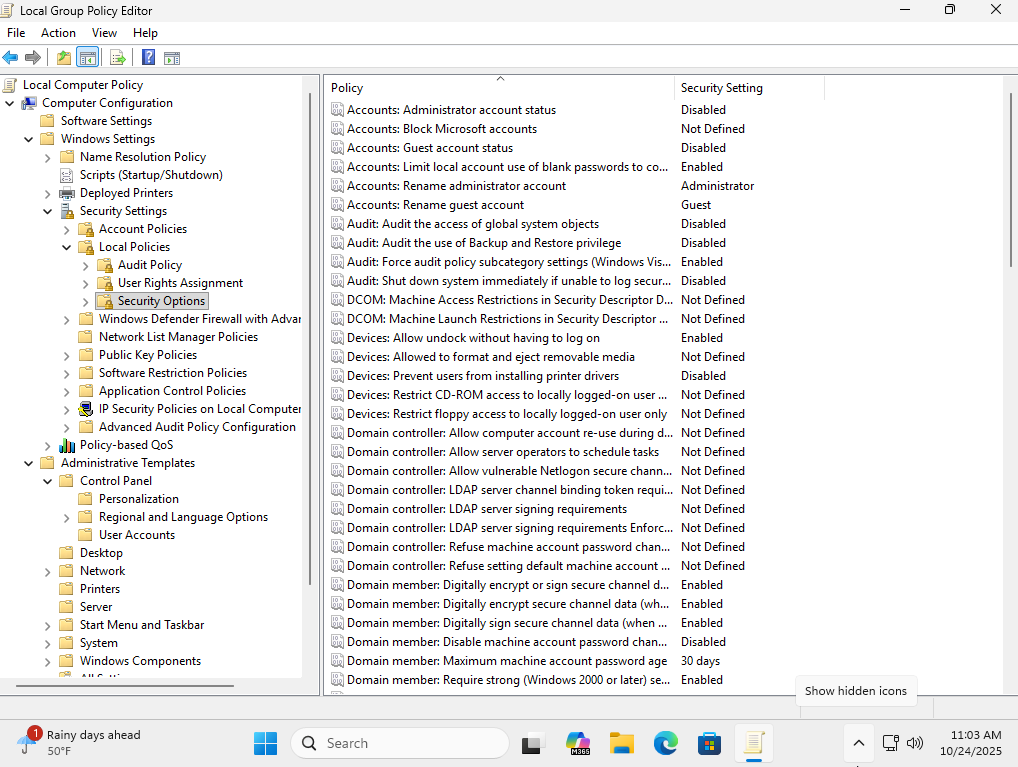
For this framework, I have compiled all the recommended industry standard security controls into a Local Group Policy template. If your organization comprises any number of Windows workstations, you can easily download the LGPO template and import it to your Windows systems to bring them up to a high level of security.
How to Import the CyberLadder LGPO Baseline Onto a Windows Computer
Download the .zip file here:
1. Ensure that you have downloaded the .zip file and extracted it to an accessible location.
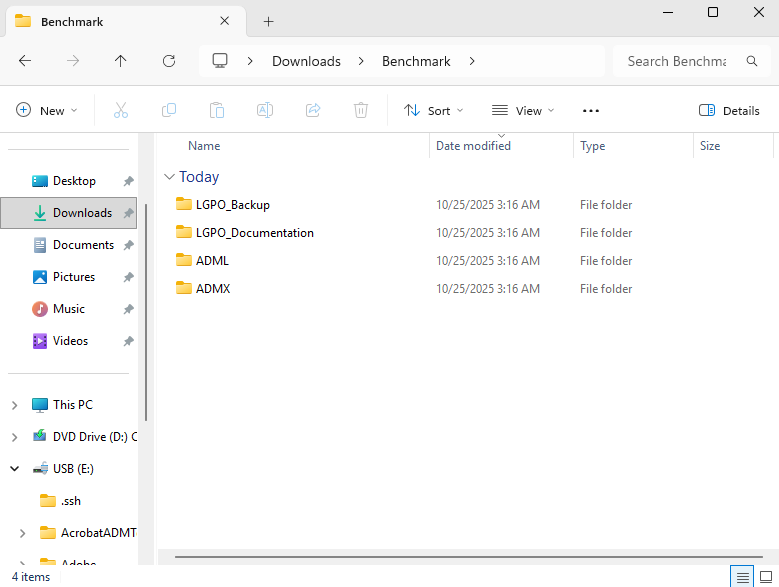
2. Navigate to the ADMX subfolder. In a new File Explorer tab, navigate to C:\Windows\PolicyDefinitions. Copy all of the .admx files from the ADMX subfolder into the PolicyDefinitions folder.
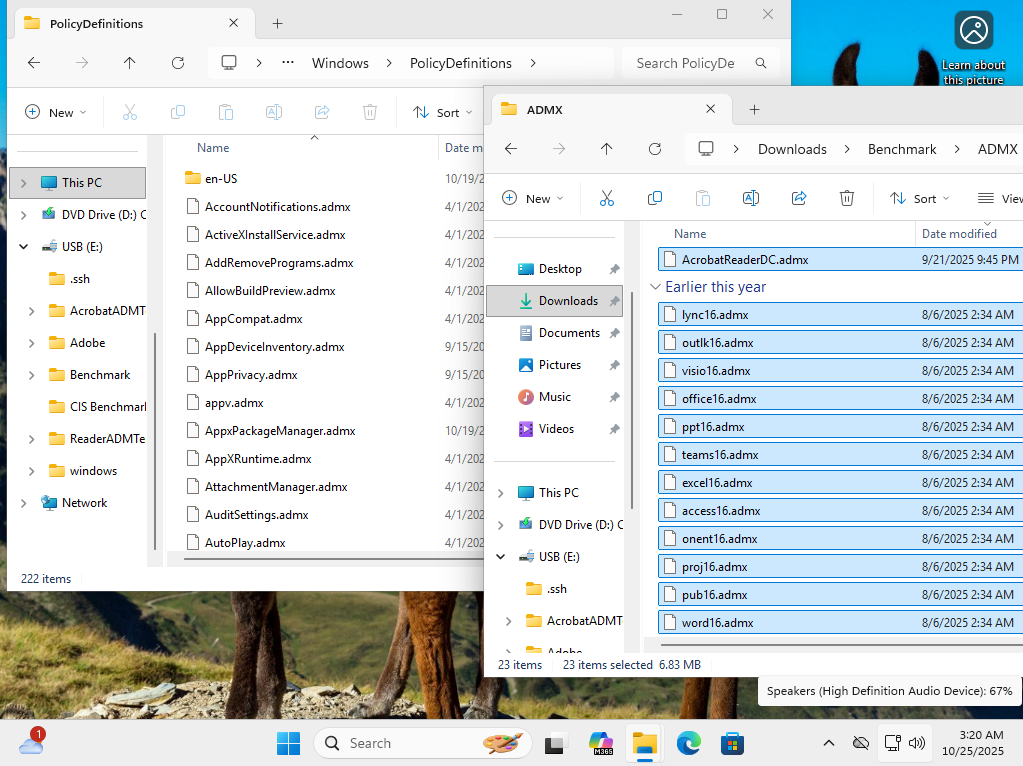
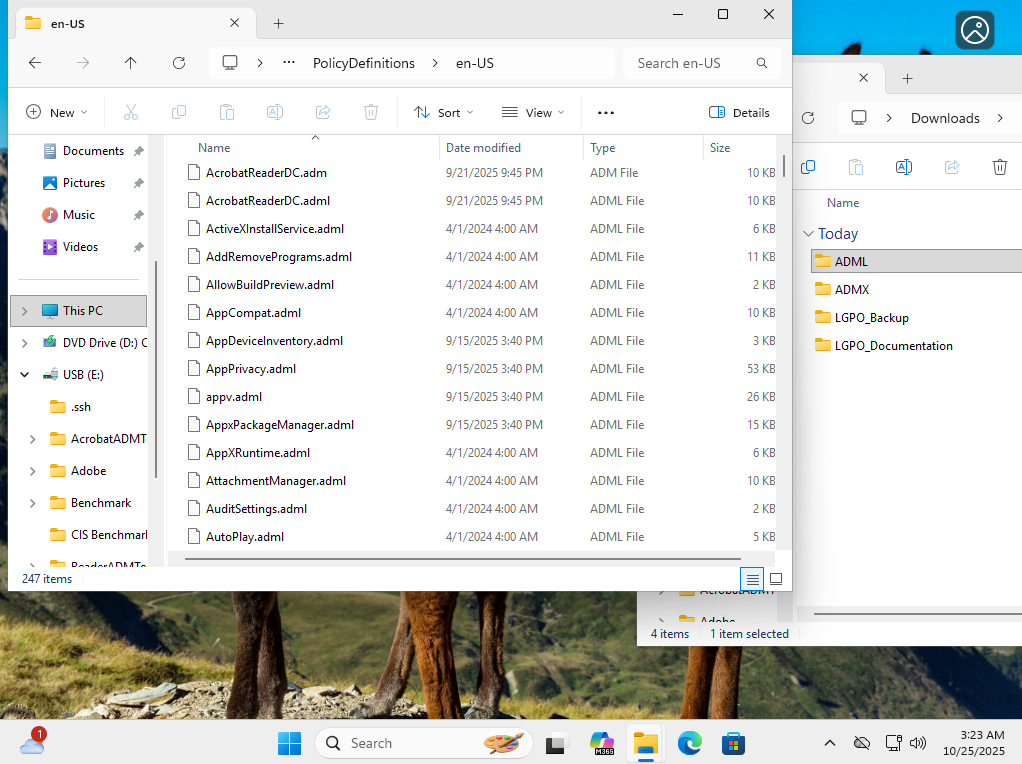
3. Next, navigate out of the Benchmark ADMX subfolder and into the ADML subfolder. Copy all of the .adml files from the subfolder into the en-US subfolder in PolicyDefinitions.
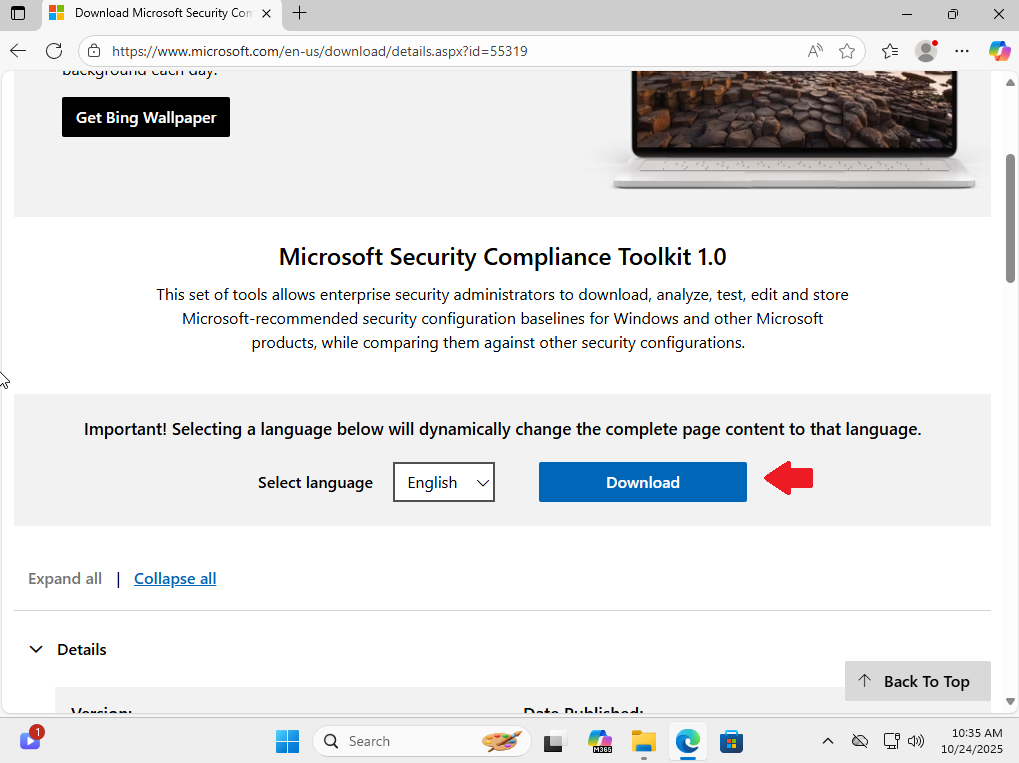
4. Visit the Microsoft Security Compliance Toolkit website and select the Download button.
5. Check the option for LGPO.zip
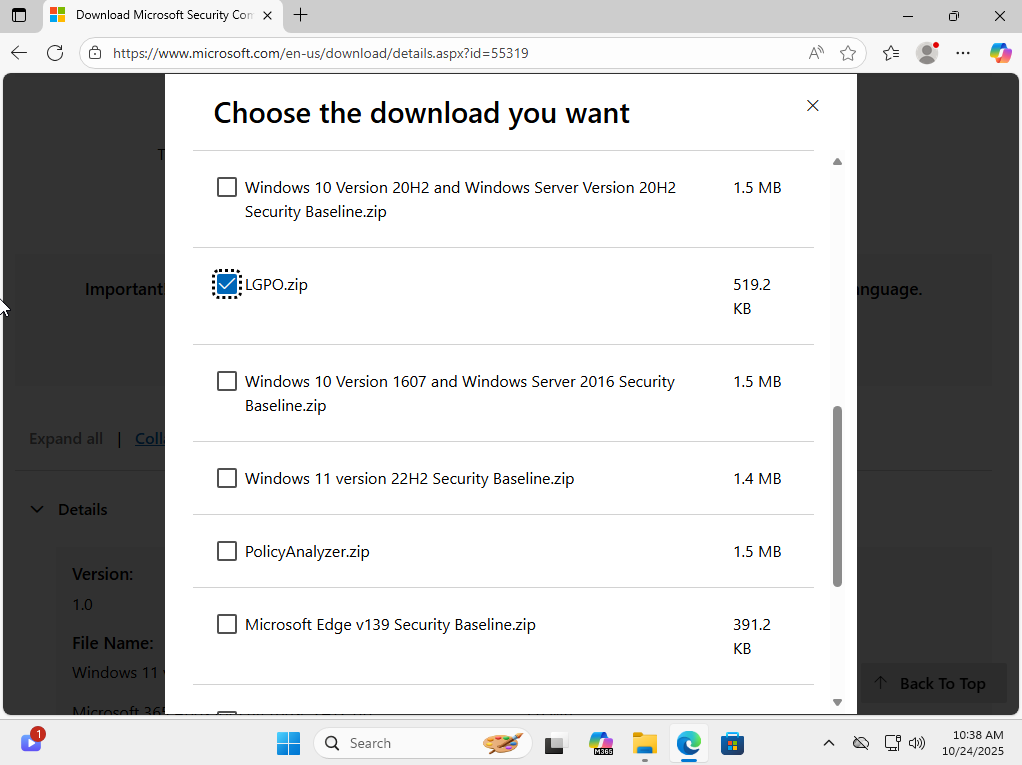
6. Download the file.
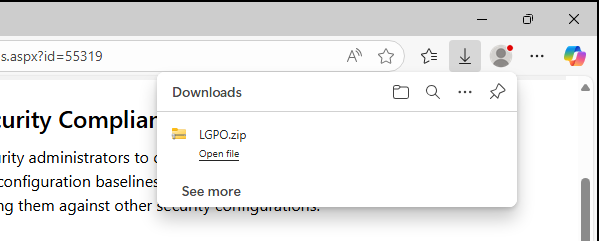
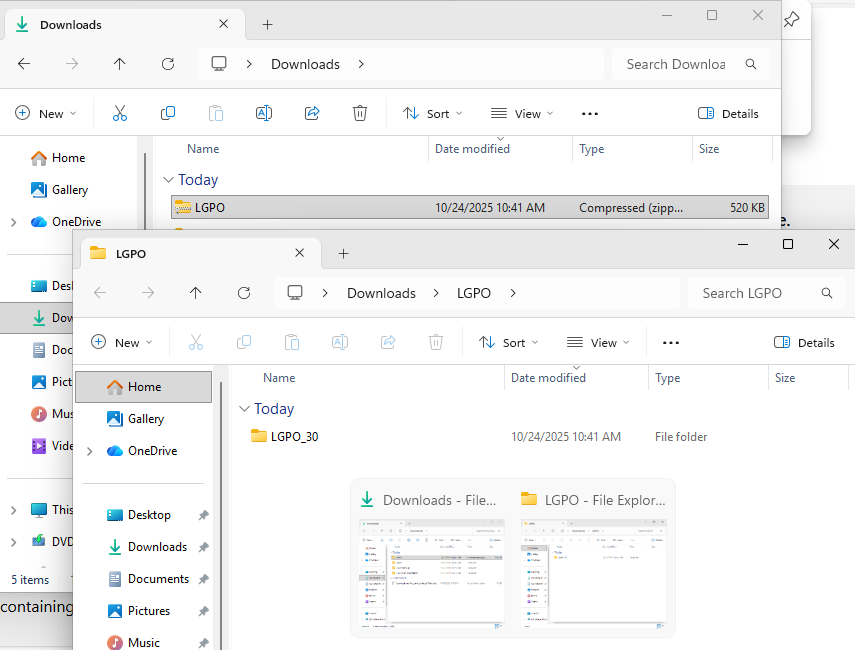
7. Extract the LGPO.zip file.
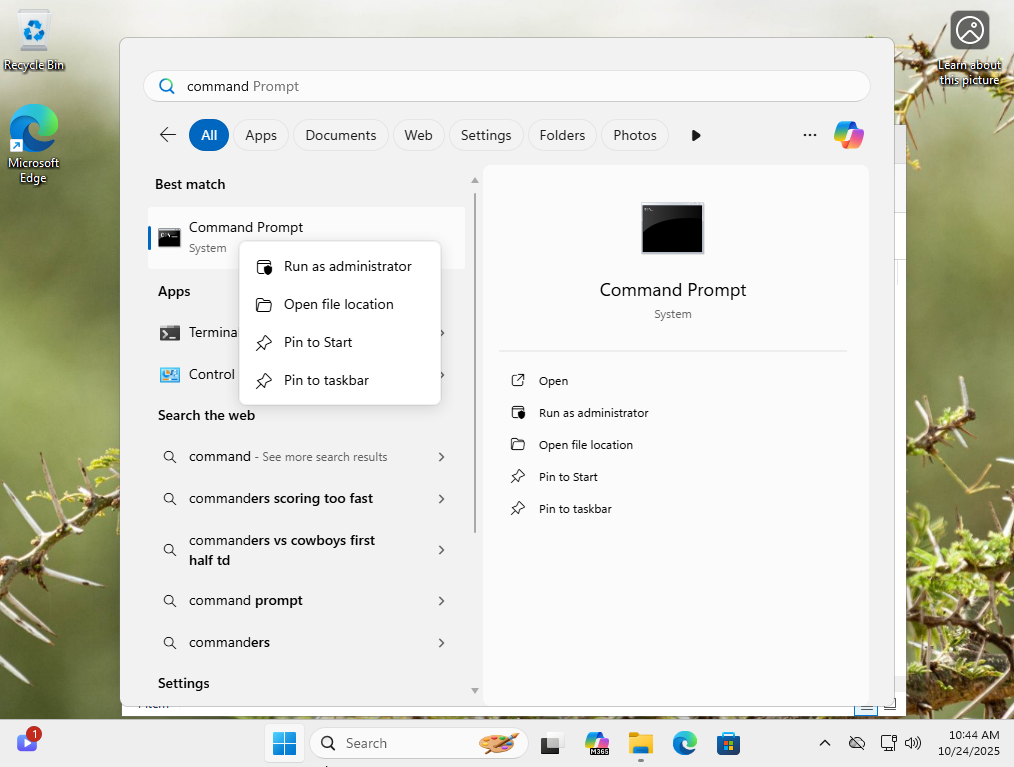
8. Open an elevated Command Prompt.
9. Navigate to the Windows directory where you extracted the LGPO folder.
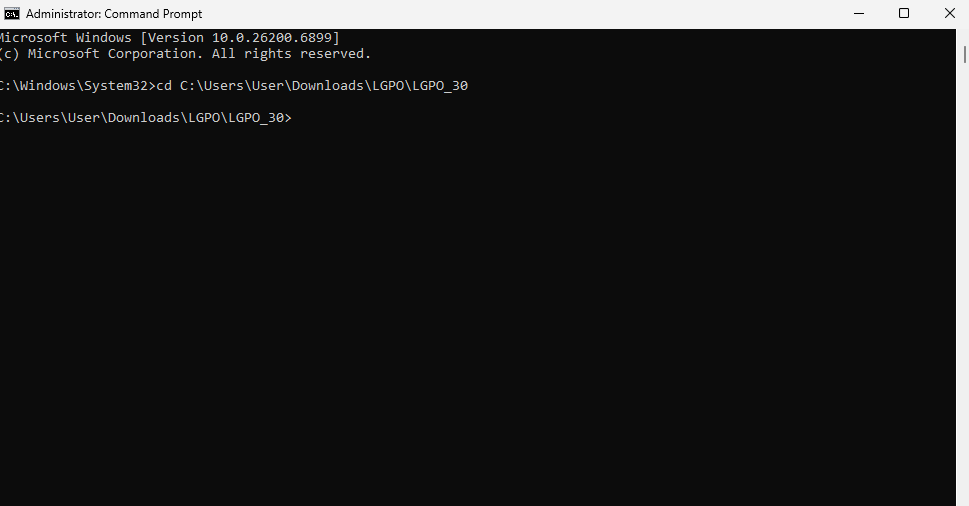
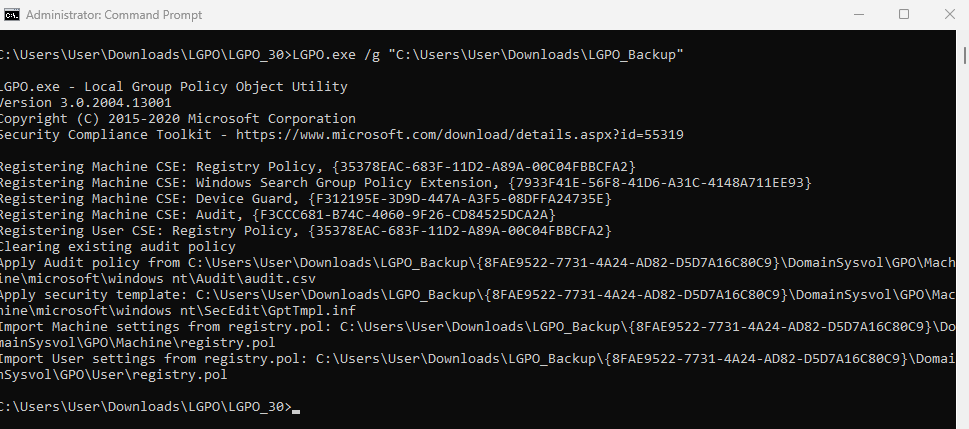
10. Run the following command to import the Local Group Policy settings:
LGPO.exe /g "C:\Path\To\The\LGPO\Backup\File"
If all goes well you should start seeing lines of text indiciating that the LGPO settings are being imported.
11. Run the following command to refresh the Group Policy settings on the system.
gpupdate /force

12. Restart your system.

13. Once the system is restarted, you can navigate to your Local Group Policy snap in and see that the baseline settings have all been imported into your system.