Setting up new computers in the workplace can be a pain, especially if you have no set guidelines on how to configure the computers. You may forget which special programs need to be installed, which users should have which apps, and which specific security fixes need to be applied to which systems. This lack of a centralized configuration plan can lead to security oversights and impact device availability for periods of time. To avoid this, make sure to lay out and document a Configuration Management Plan before installing any new devices.
Depending on the size of your business and the number of employees, you may choose to embrace one or more of the following Configuration Management Methods.
Method 1: Hard Disk Cloning
If you have a very small business environment with five or fewer computers, you can use the simple method of drive cloning to keep copies of your desired system state. When you purchase a new computer for your workplace, throw in four or five SSDs or HDDs that match the size of the one present in the computer. When you set up the new computer, get the OS to a desired state with all of your required applications and device settings. You can then use an open-source disk cloning solution like CloneZilla to clone the computer's disk bit for bit to the backup drives. You then have extra copies of your device configurations to store and swap in whenever needed. This solution requires a bit of work, but it is a great long-term solution for a small environment. Do be aware that when you swap in a backup drive, you will need to re-activate all of the proprietary software as well as apply all of the OS and application updates missed during the drive downtime.
Method 2: Imaging Server
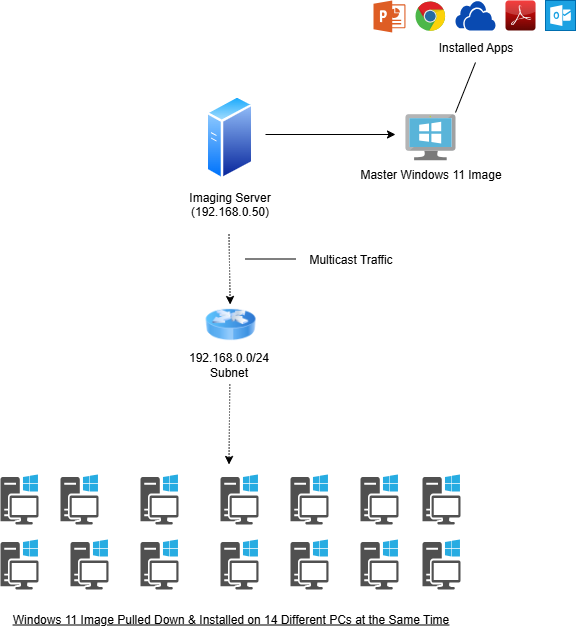
If your environment is comprised of various operating systems and various configurations determined by departments, building an imaging server to store and deploy baseline OS images may be the best choice. With this method, you start by installing an operating system on a test computer or virtual machine. You then configure the OS with all the necessary software and device settings, creating a baseline for that specific OS implementation in your workplace. When the baseline configuration is complete, you use your desktop imaging solution to capture the operating system state and store it.
To install the image on other computers, you will need to ensure that your imaging server has a static IP on your network and that your computers are able to network (PXE) boot. In the System Startup Settings, you will need to enter PXE boot, through which each computer will contact the imaging server. After selecting your choice of image, the computer will pull down the operating system and all of its configurations and install them. This significantly speeds up the configuration process, as you no longer have to go around installing the same ten programs and changing the same ten settings on each machine.
Various options exist for imaging servers. I would recommend FOG Project or Clonezilla Server for free options.
Method 3: MDM
Using a cloud-based Mobile Device Management (MDM) platform for device configuration is a good solution for environments with a wide variety of devices and OS platforms. If your environment also mandates lots of travel and remote work, then using MDM may also be the best option. There are different MDM solutions targeting different platforms with different interfaces and configuration approaches. In an Apple native environment, Apple Configurator can be used on a simple MacBook to configure and push settings for bulk macOS, iPad OS, and iOS devices. If you want a more comprehensive MDM solution for Apple devices, you can look into JAMF.
Microsoft's InTune is an interesting solution because it enables configurations for not just Windows devices, but also macOS, iOS, and Android. If your organization is already making use of Microsoft's cloud platforms like Azure and Microsoft 365, it would naturally make sense to use InTune for device configurations. InTune is relatively straightforward. It requires some basic knowledge of the Windows OS and IT infrastructure, but you can get the hang of the interface pretty quickly.
Device configuration through MDM is generally as simple as entering a few different settings and selecting Users and Devices to deploy them to. MDM platforms can get very granular with the sheer level of configuration an administrator can perform. Microsoft InTune offers just as much control as the Group Policies used to configure domain machines. In addition to device settings, MDM platforms allow you to pre-configure Wi-Fi connections, VPN profiles, and Application Whitelisting. You can also configure organization-wide policies for locking or wiping devices if they are lost.
If you are willing to purchase a subscription and take a day or two to configure your own settings, then an MDM solution may be the best option for your organization. Since these platforms are used in the cloud, you have the added benefit of removing the burden of storing and securing local copies of device configurations.
Method 4: Windows Provisioning Packages
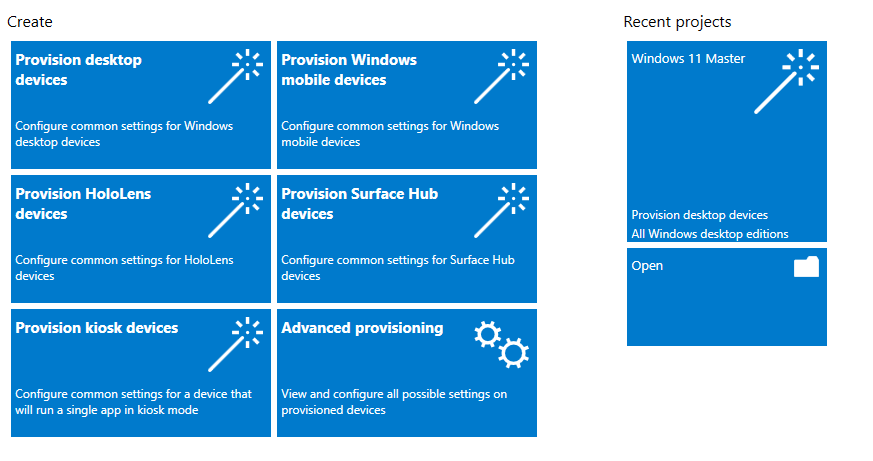
Provisioning Packages are containers created in Windows Configuration Designer that contain desired settings and applications for workplace devices. These packages are very straightforward to create and install. The Windows Configuration Designer app can be downloaded from the Windows Store. The interface is simple and presents you with options for creating packages for desktops, mobile devices, Surface Hubs, and kiosk devices. The creation process allows you to pre-specify naming conventions for devices, load Wi-Fi networks and certificates, join AD or MS Entra ID, and install applications silently in the background.
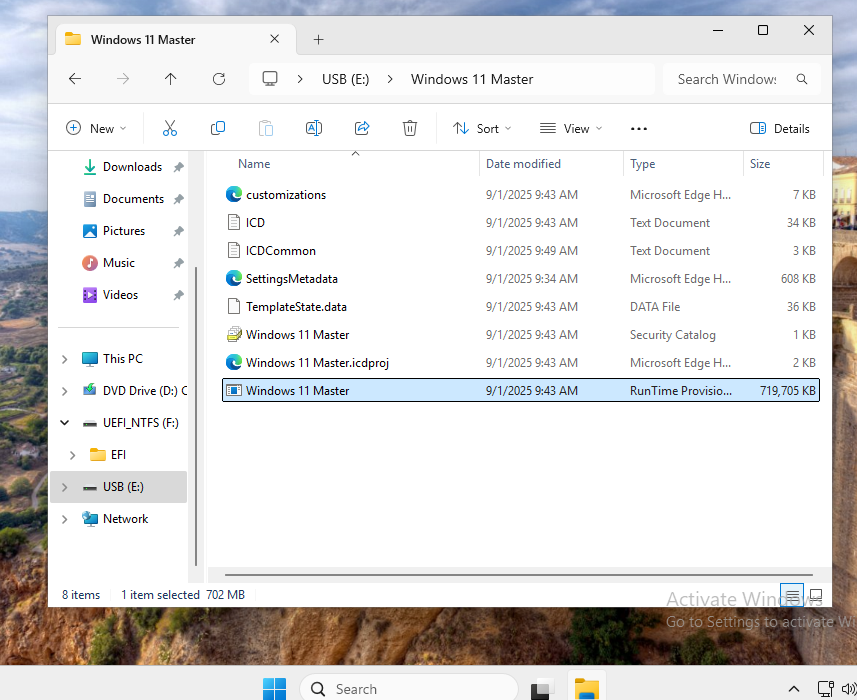
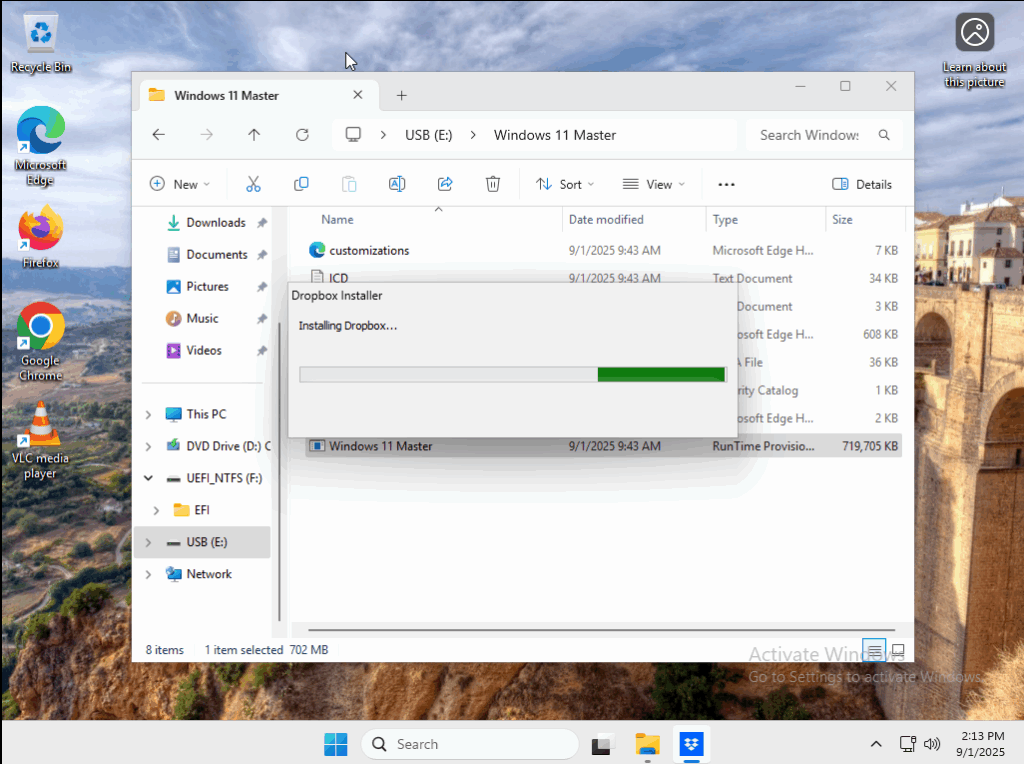
Once you have filled the package with all of your desired configurations, the program will create a provisioning package that you can copy to an external drive. From there, you can go computer to computer in your workplace and simply open the package and launch the installer. The configurations will be applied to each device, forcing a restart after completion.
If you have a Windows native environment like many businesses do, this approach is probably the easiest and most efficient. Provisioning packages can be regularly updated and re-configured to flow with the changing digital landscape. Just make sure you keep copies of your packages backed up and accessible to only those who need permissions to configure devices.
Documentation & Testing
To stay organized, ensure that all master configurations are documented and stored in an appropriate location. Baseline configurations should be updated on some sort of set schedule. You can wait several years until the newest edition of your operating system comes out. You could change your baseline images at the start of every year. If the need for new software arises in your environment, you can set aside a maintenance window to update and deploy a new image with the software.
Always make sure you test your baseline images before deploying them to workplace systems. If you mass deploy an image with serious functionality issues, you will have chaos on your hands when the next workday begins. All you need is an old PC for testing images, or a virtual machine if you lack that option. During the testing phase, play around with the OS and the installed programs to make sure they function as needed.
To keep track of your configurations, you can use the template I have provided below.
 Loading...

 Reload document
  Open in new tab